The platform allows you to edit layer features directly during project creation. The user can:
Edit feature attribute information
Edit feature geometry
Delete feature
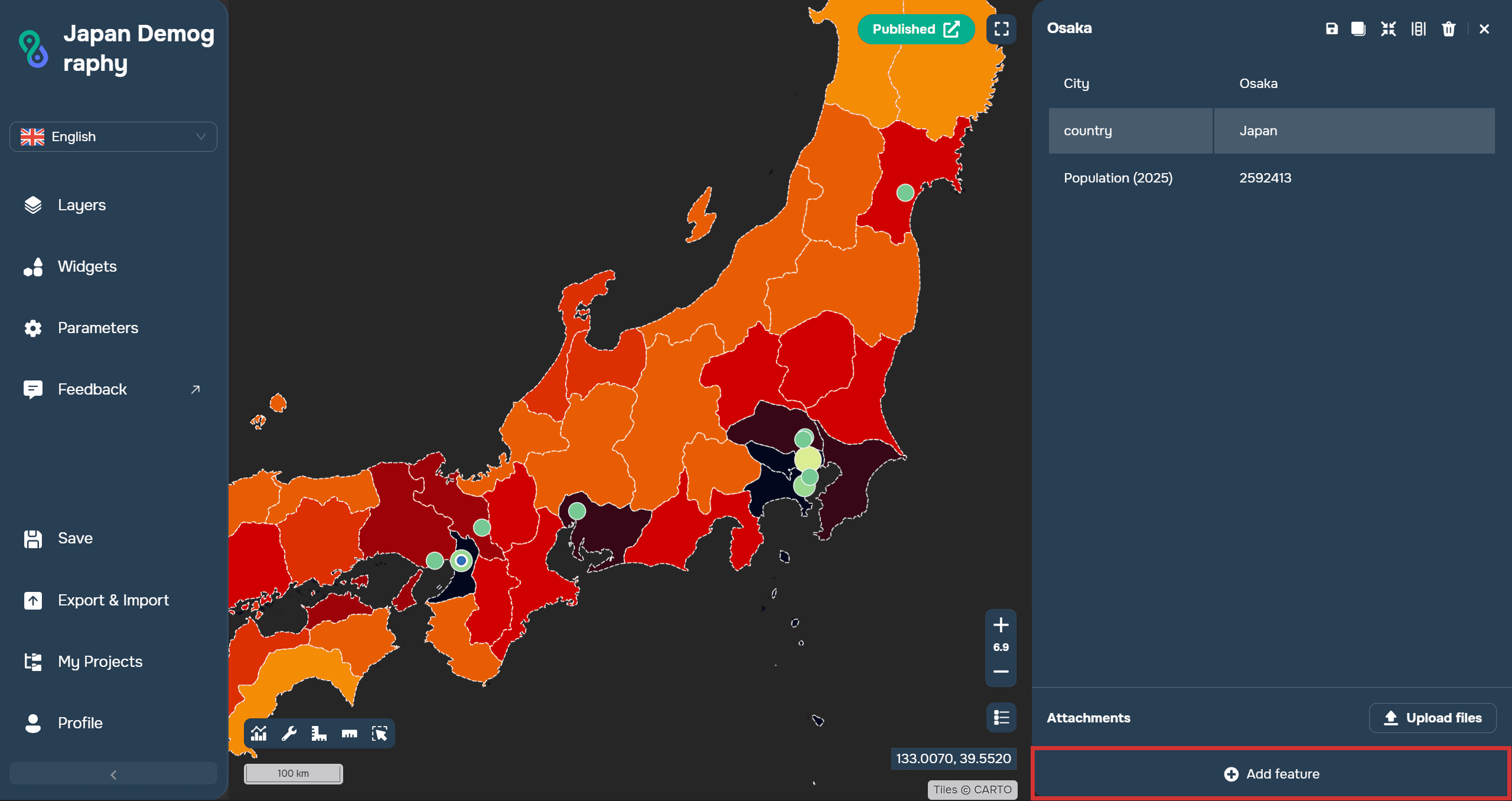
Add a new feature
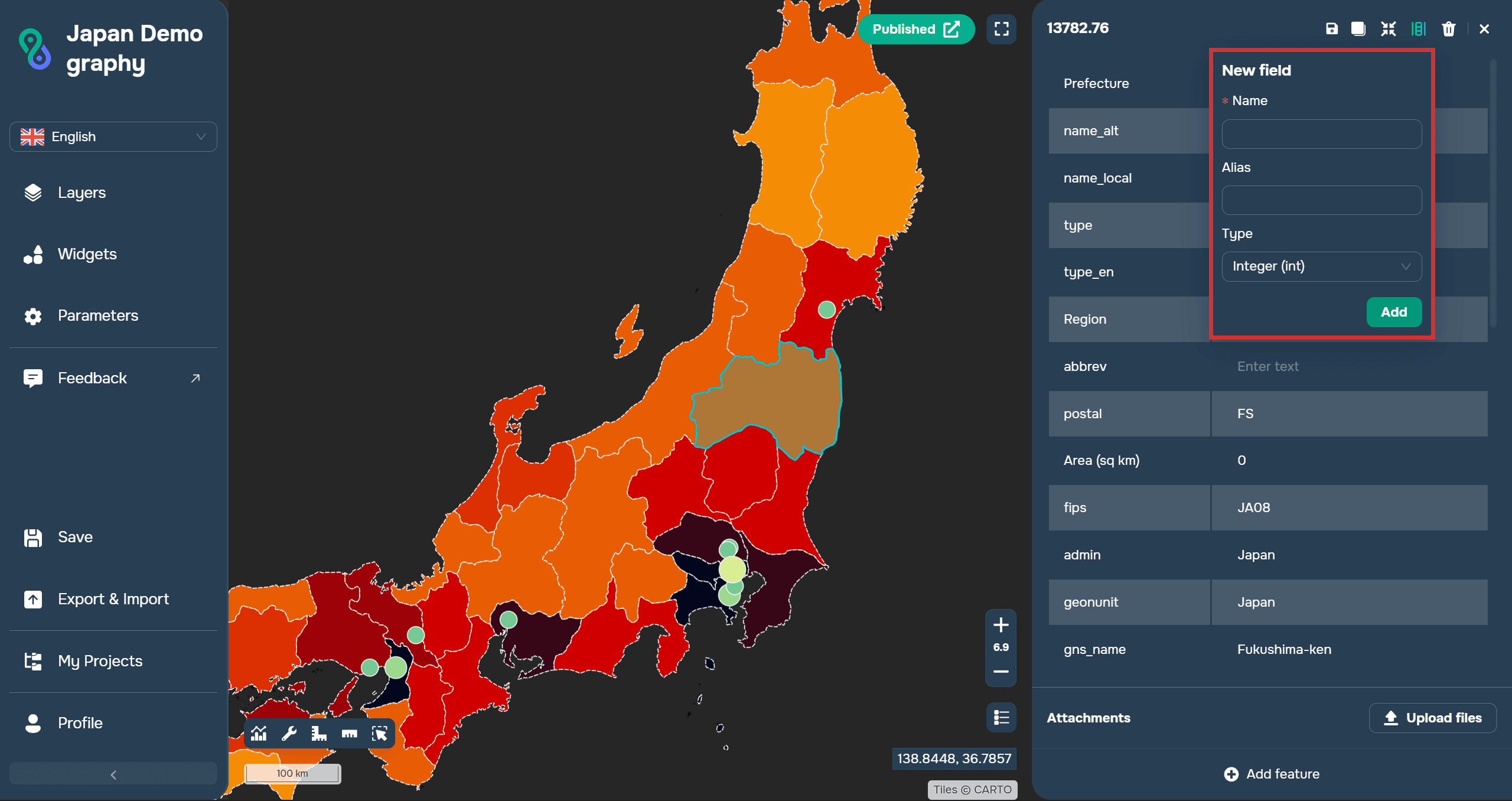
Add a new field to layer
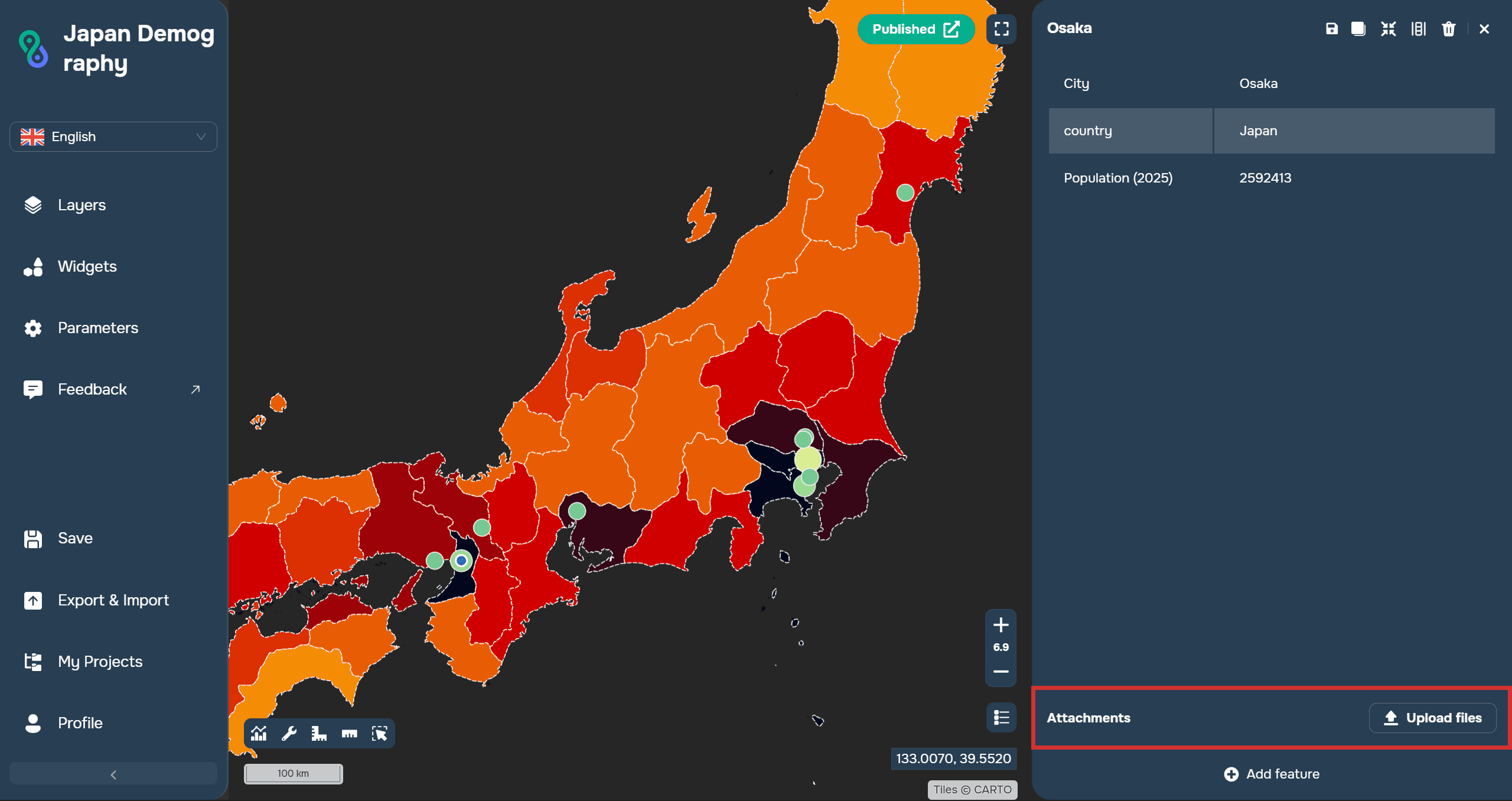
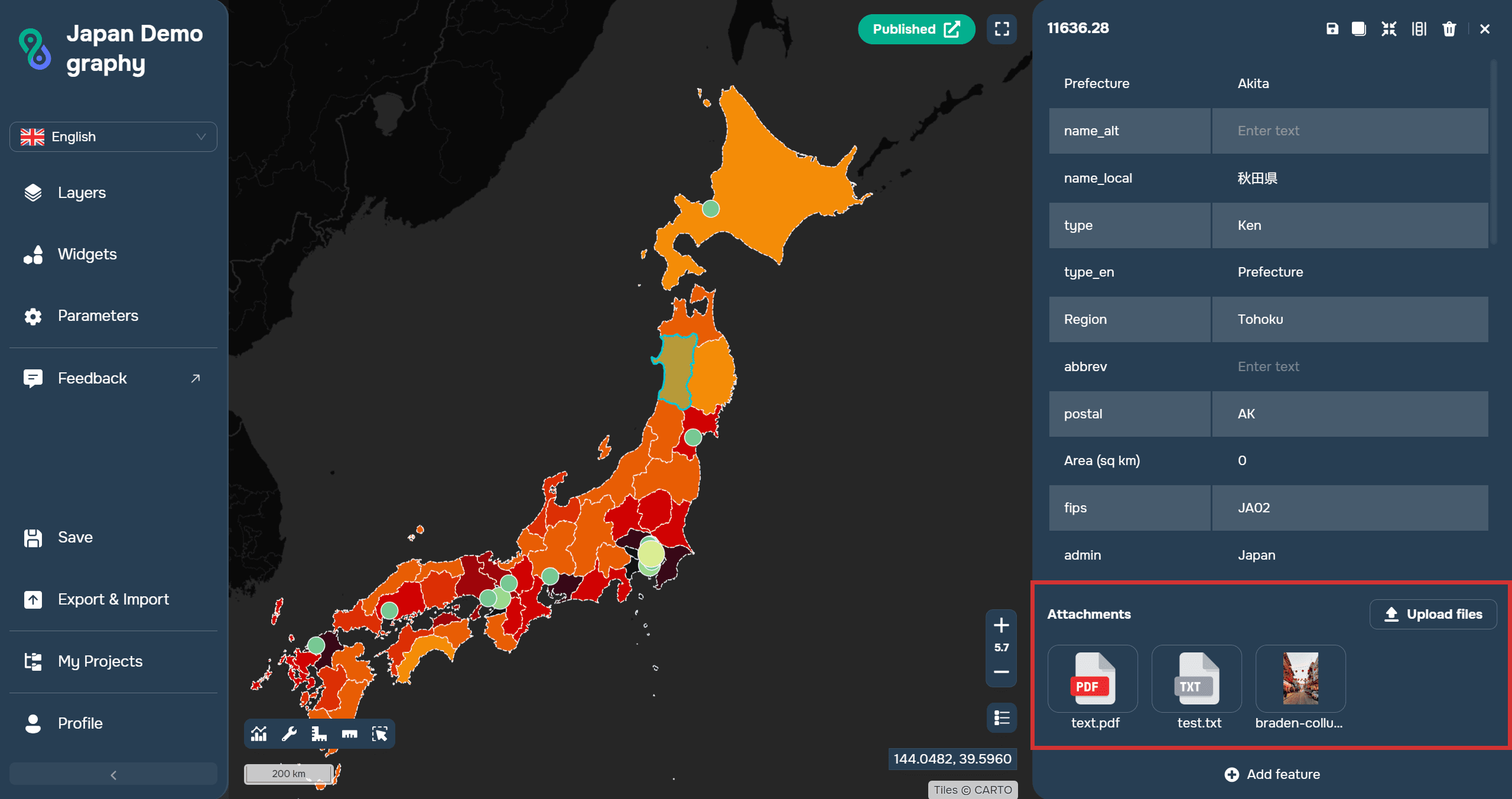
Add Attachments
To edit an existing features, click on the feature and select the pencil icon in the information window.
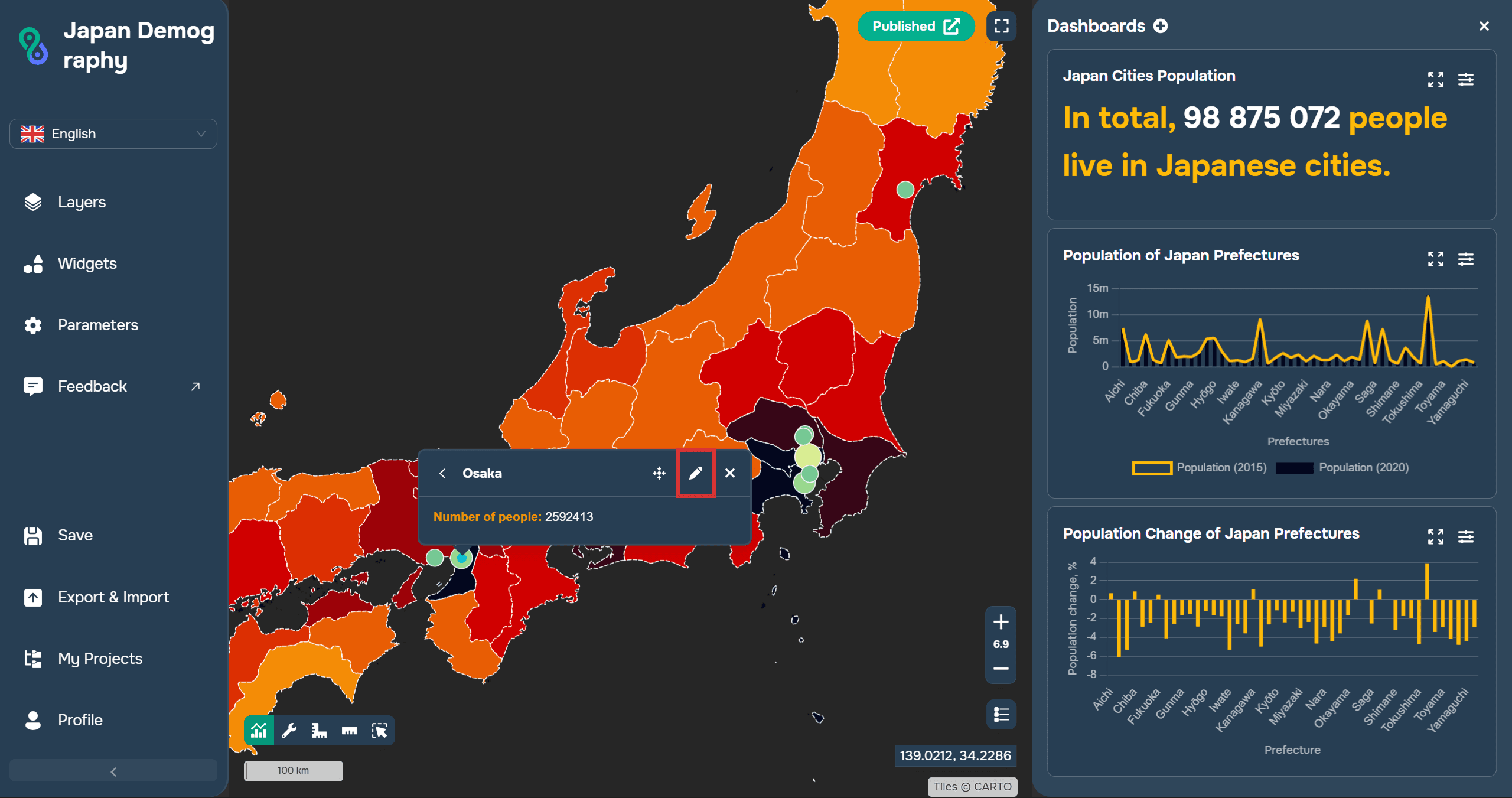
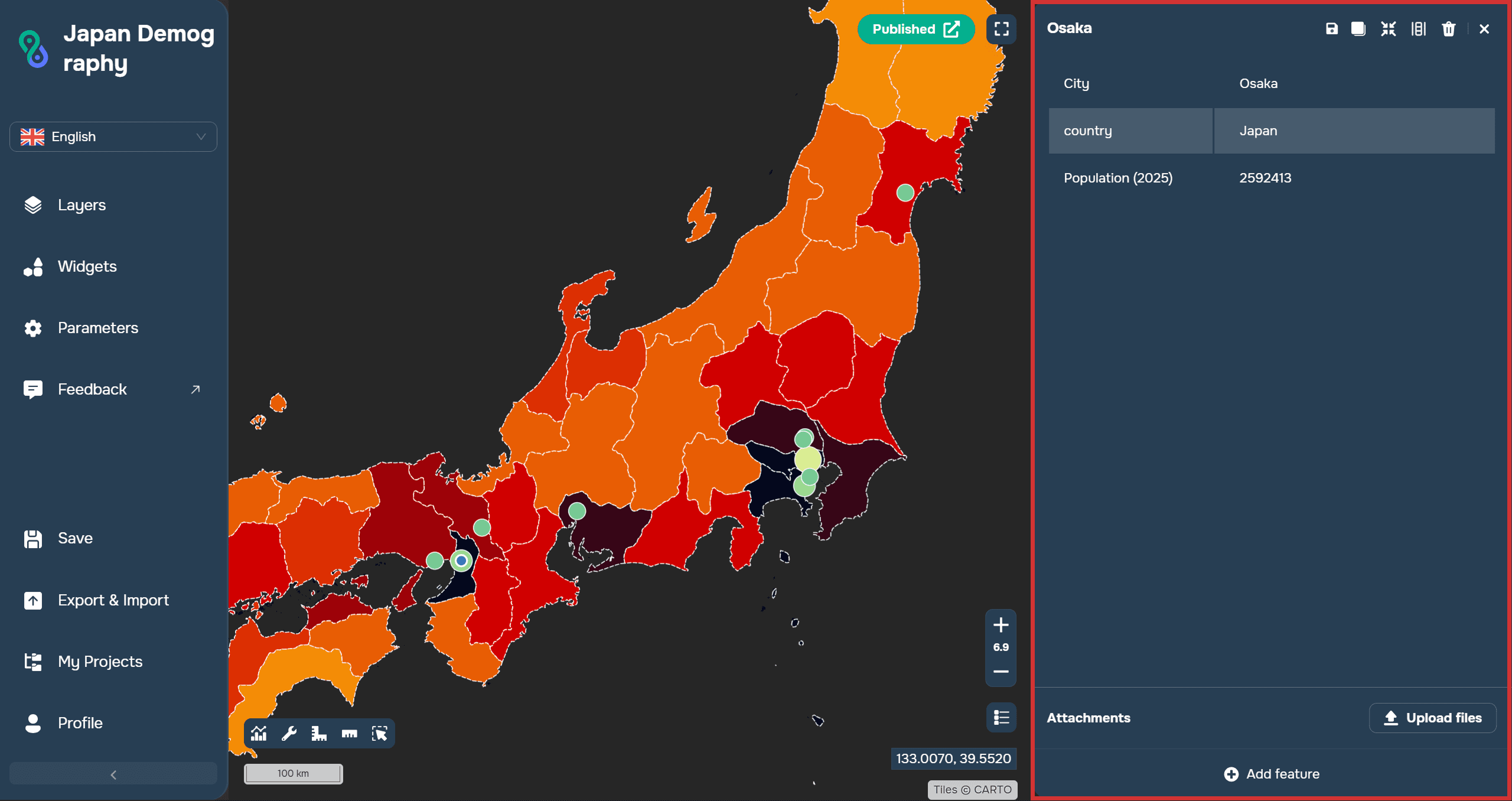
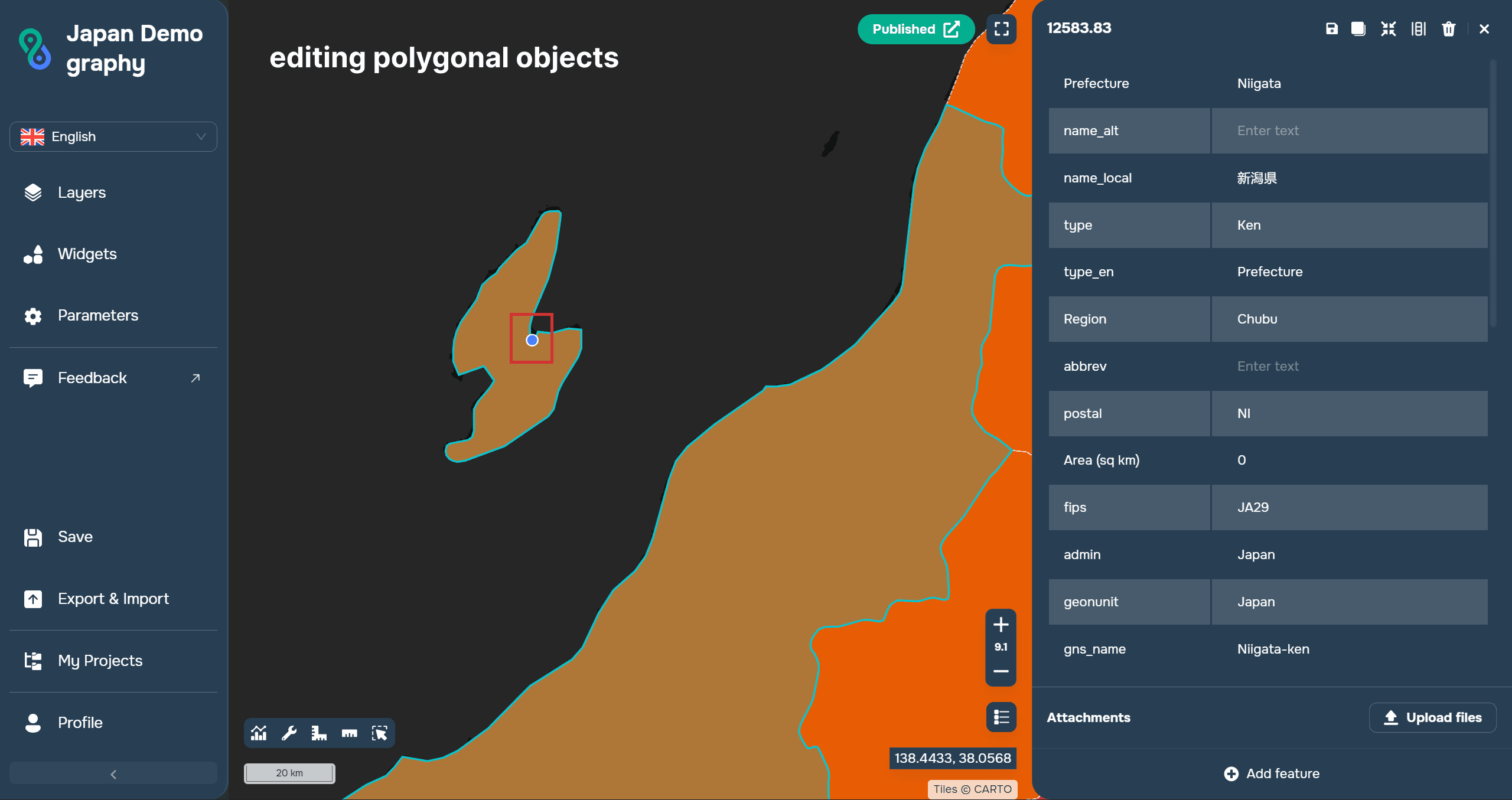
A sidebar will then open with all the information about the object's attributes. You can edit the information in the existing fields and then save it.
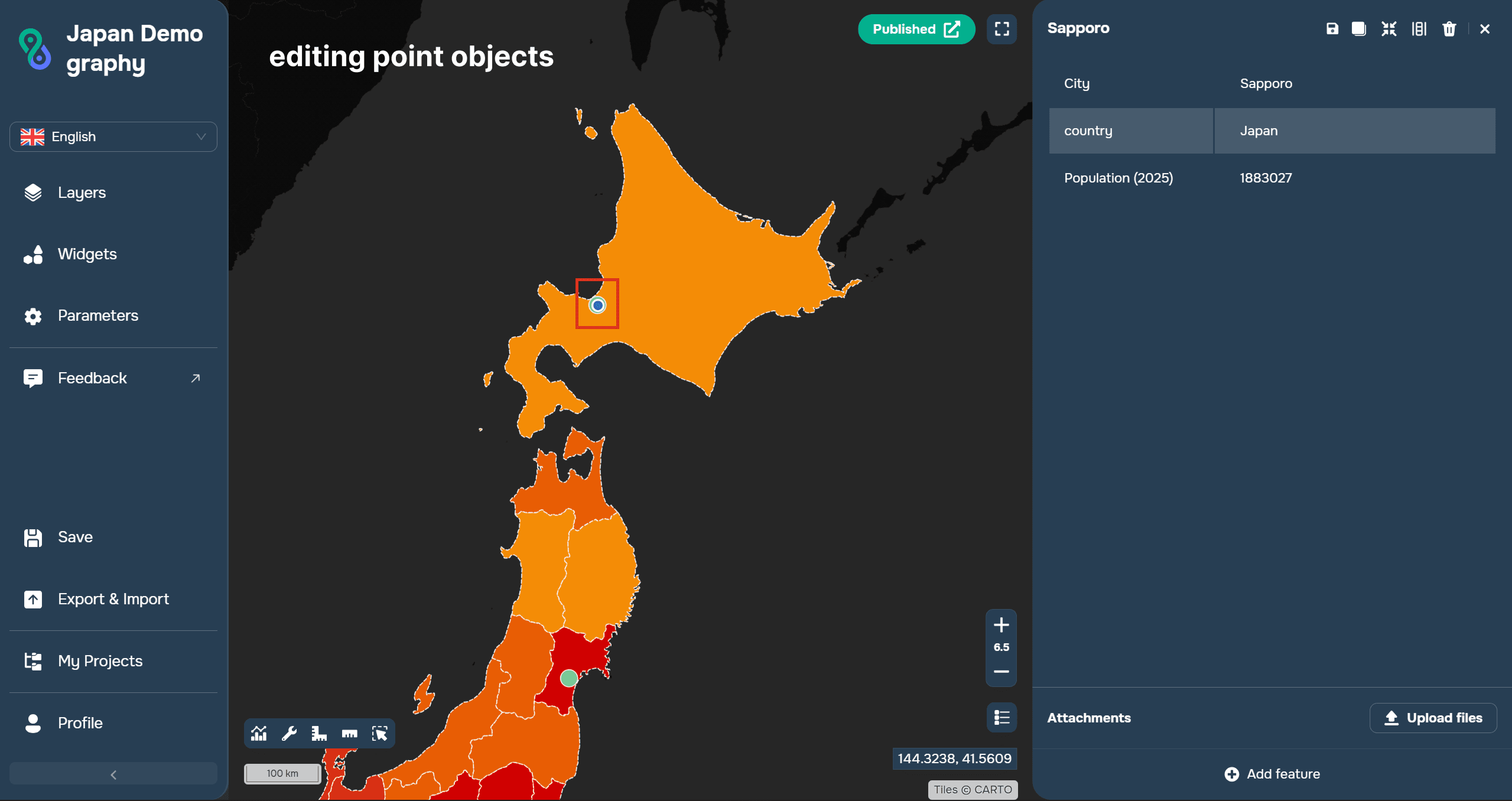
You can also edit an object's geometry on the platform. Simply enter edit mode and hover the cursor over the object. For polygonal objects, you need to move the vertices, and for point objects, you need to move the centroid.
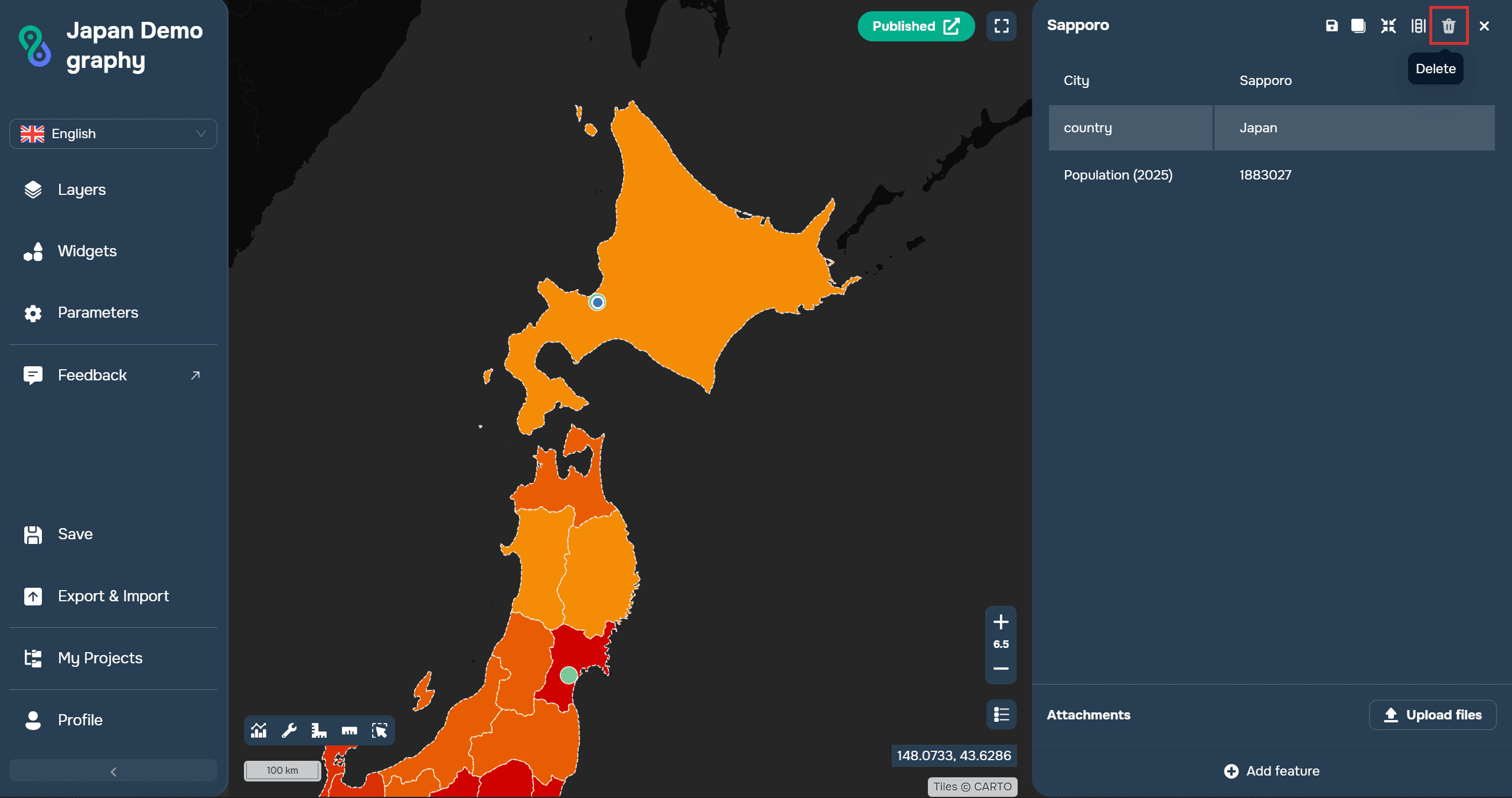
To delete an object, you must click the delete button in the upper right corner of the editing window.
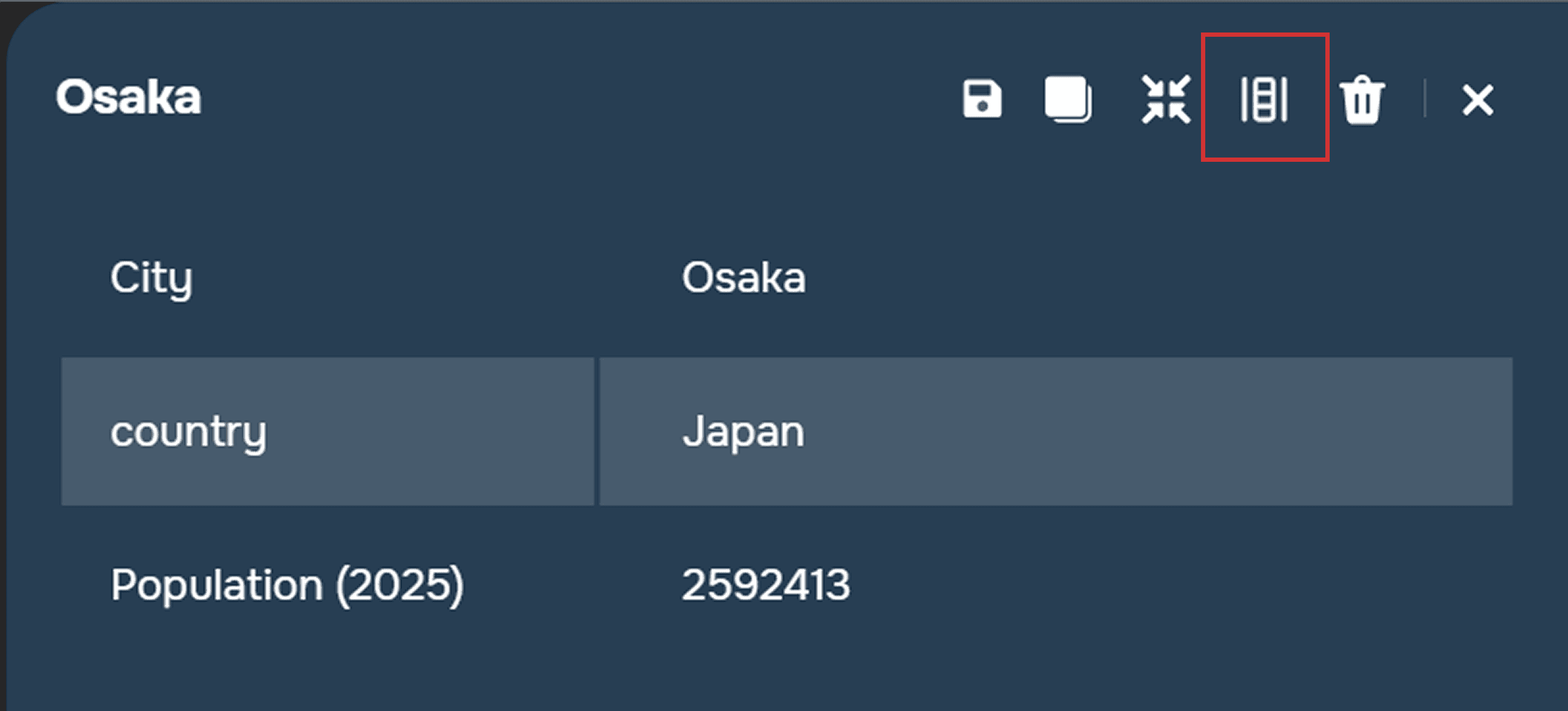
The function of adding a new field in the layer is also available.
To add a new feature, you must select the appropriate section via the layer's context menu or click the Add Feature button in edit mode.
Another feature is the ability to add attachments to a feature information pop-up. These can be various files, such as photos, videos, spreadsheets, documents, and others. Photos and videos will be displayed in a separate window, while other files will be displayed as attachments to the object.To add a media file, click the Upload Files button in the Attachments section.
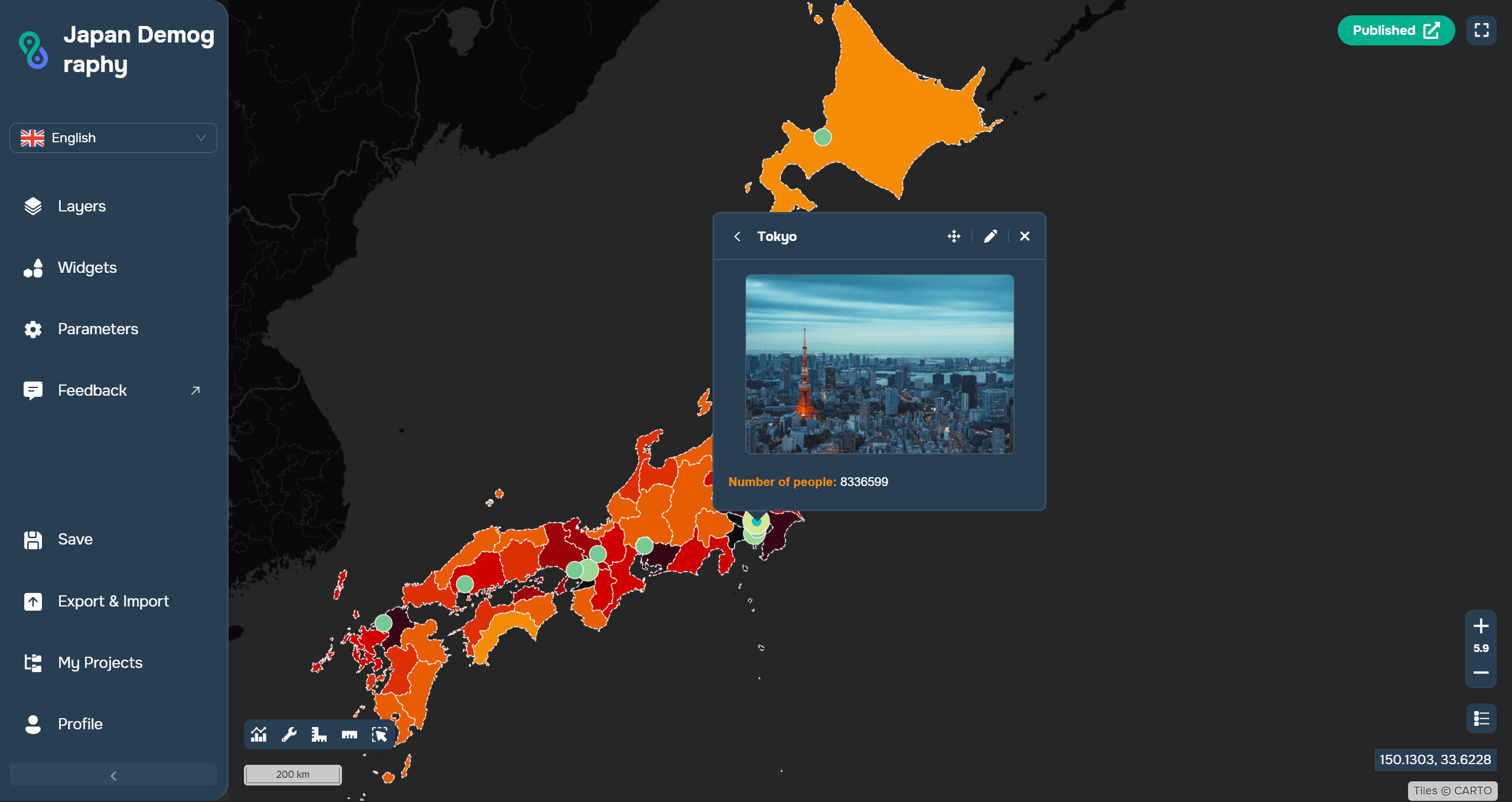
Edit features on the platform without any problems!