El papel del geoprocesamiento en el análisis espacial
El geoprocesamiento es un elemento clave del trabajo con datos espaciales en SIG. El geoprocesamiento se refiere a un conjunto de operaciones destinadas a transformar, analizar y combinar entidades geográficas para generar nueva información.
Las herramientas de geoprocesamiento se utilizan cuando es necesario preparar datos para el análisis, identificar áreas de interés, comparar múltiples fuentes de información o identificar patrones espaciales.
Herramientas básicas de geoprocesamiento para trabajar con geometría
Las herramientas básicas de geoprocesamiento incluyen operaciones que modifican o combinan la geometría de las entidades. La herramienta Recortar (Clip) se utiliza para recortar una capa según los límites de otra y se usa ampliamente para seleccionar datos dentro de un área específica. Restar (Borrar) permite excluir de una capa las áreas que se superponen con otras entidades, lo cual es útil al analizar zonas de restricción o exclusión.
La herramienta Intersección (Intersect) crea una nueva capa que contiene solo las partes comunes de las entidades que se intersectan, lo que la hace indispensable al analizar coincidencias y superposiciones entre diferentes capas geológicas o temáticas. Fusionar (Merge) se utiliza para combinar múltiples capas del mismo tipo en un solo conjunto de datos y es útil cuando se trabaja con fuentes de información dispares.
Para analizar límites y entidades lineales, la herramienta Polígono a línea convierte entidades poligonales en entidades lineales conservando sus límites. Esto es especialmente útil al analizar fallas, contornos de cuerpos geológicos y límites administrativos.
Herramientas analíticas espaciales
Un grupo separado de herramientas analíticas está compuesto por herramientas destinadas a estudiar las relaciones espaciales. Zona de influencia (Buffer) se utiliza para construir zonas de influencia alrededor de objetos a una distancia determinada y se utiliza, por ejemplo, para evaluar la influencia de fallas geológicas, cuerpos de agua o pozos.
Las herramientas de Análisis espacial permiten operaciones más complejas, como analizar la densidad, la intersección, las distancias y las dependencias espaciales entre objetos.
Los Polígonos de Thiessen (polígonos de Voronoi), que se construyen a partir de objetos puntuales y muestran las zonas de influencia inmediata de cada punto, ocupan un lugar especial. En geología, se utilizan para interpolar datos de pozos, analizar la distribución de muestras y evaluar la cobertura espacial de las observaciones.
¿Cómo utilizar el widget de Geoprocesamiento en GISCARTA?
Paso 1. Para comenzar a utilizar el widget, debe hacer que esté disponible en la barra de herramientas. Para hacer esto, actívelo en la sección Widgets usando el interruptor de alternancia.
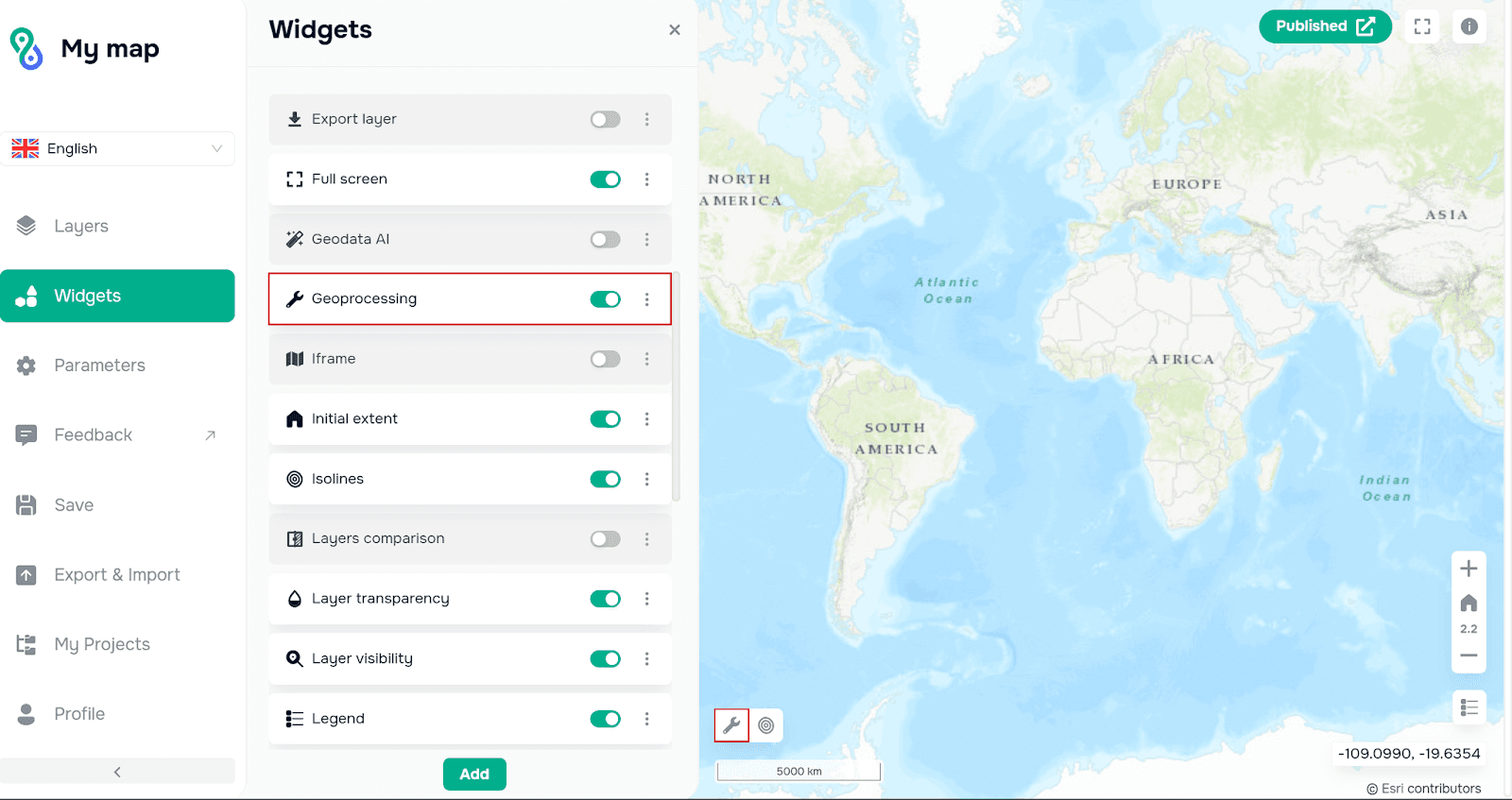
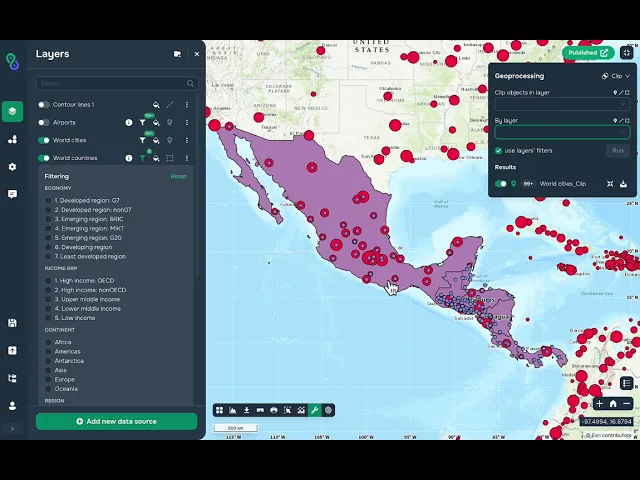
Paso 2. A continuación, en la esquina superior derecha de la ventana del widget, debe seleccionar el tipo de geoprocesamiento de la lista desplegable que se abre al hacer clic en Recortar (Clip).
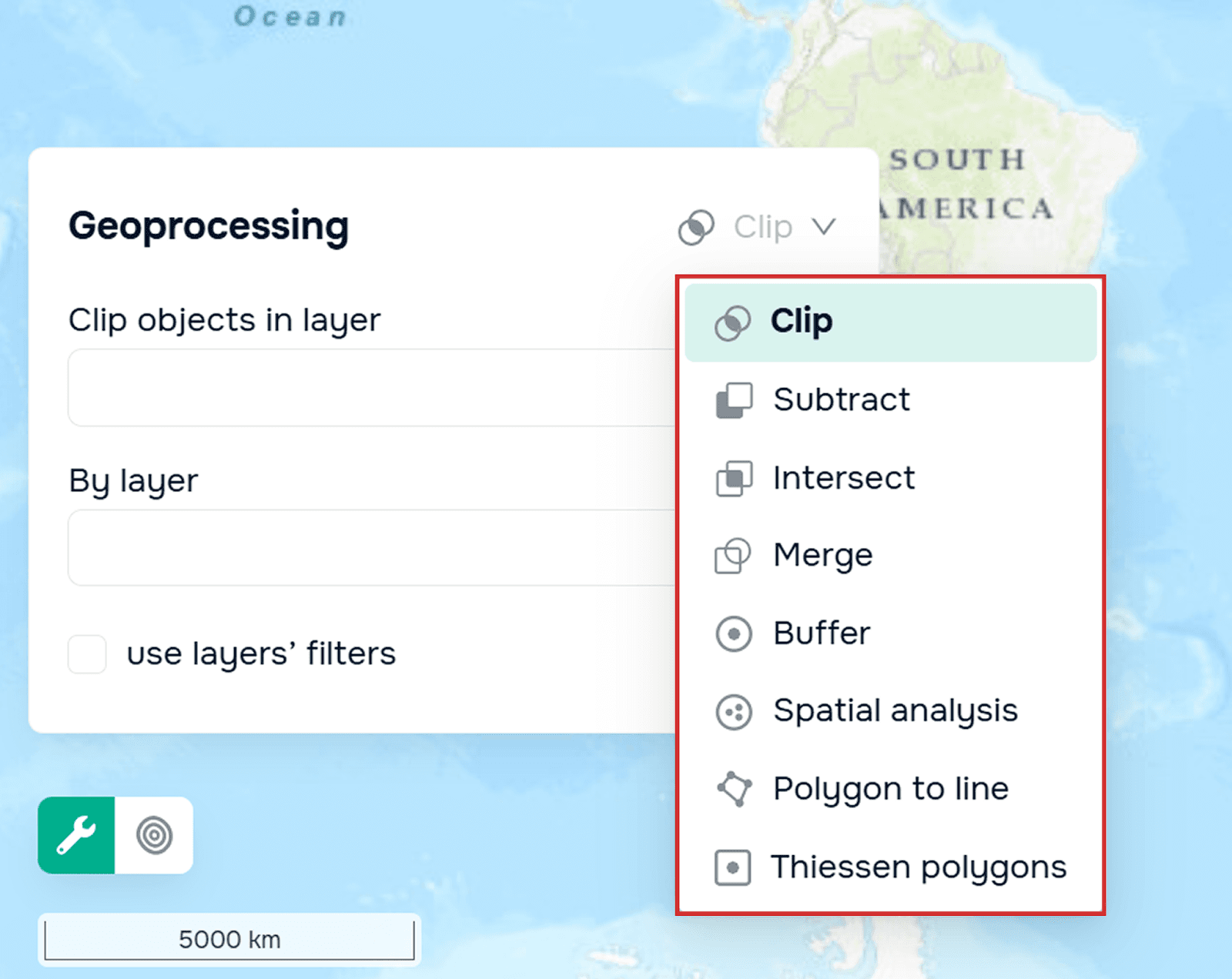
Paso 3. El proceso de geoprocesamiento en sí. Veamos cada uno con más detalle.
Recortar (Clip)
To work with this tool, you need to select the layer that we want to crop and the layer by which we will crop. You can also take into account the enabled filters in layers.
The result of the tool will be the intersection of objects of the first and second layers.
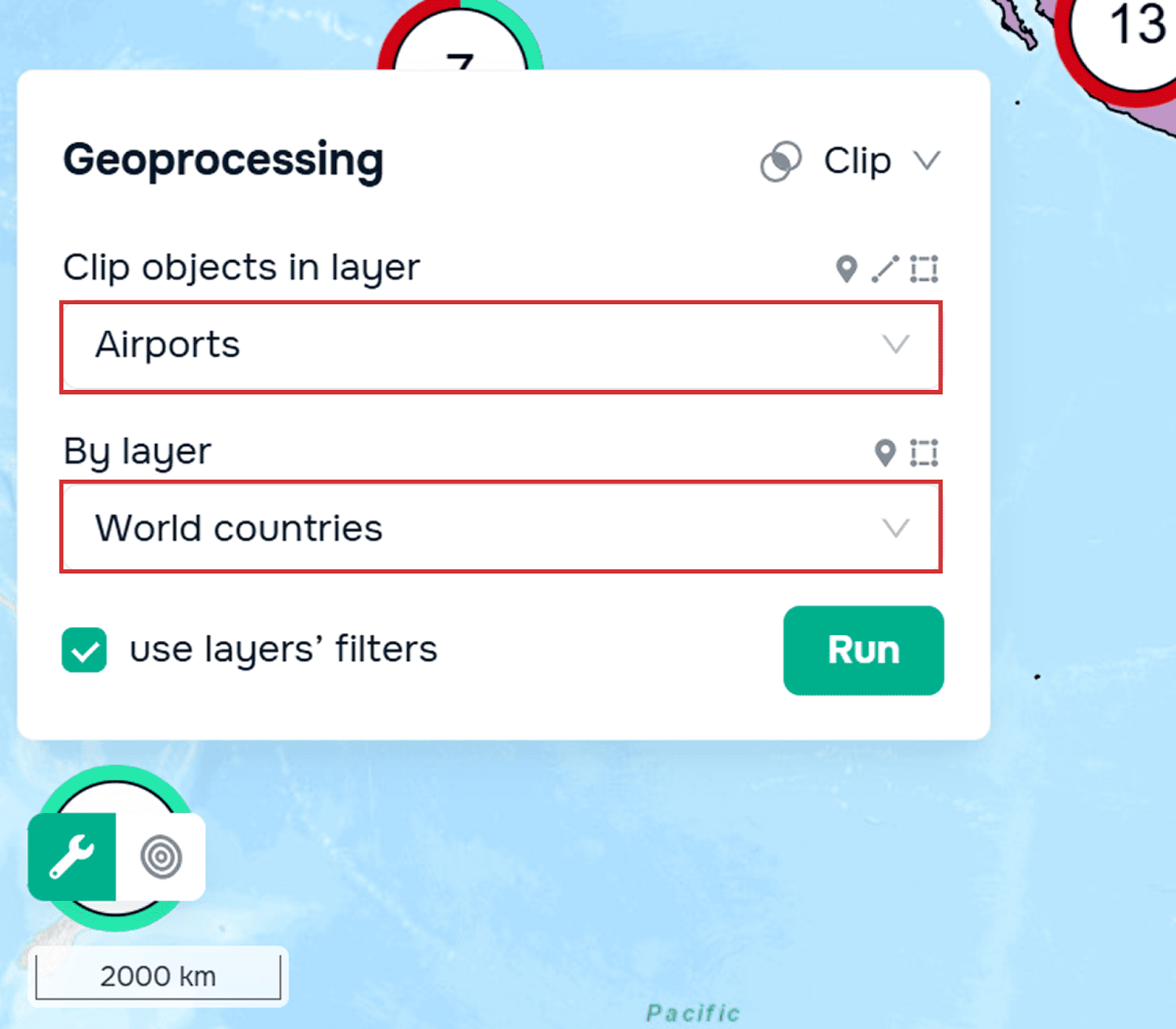
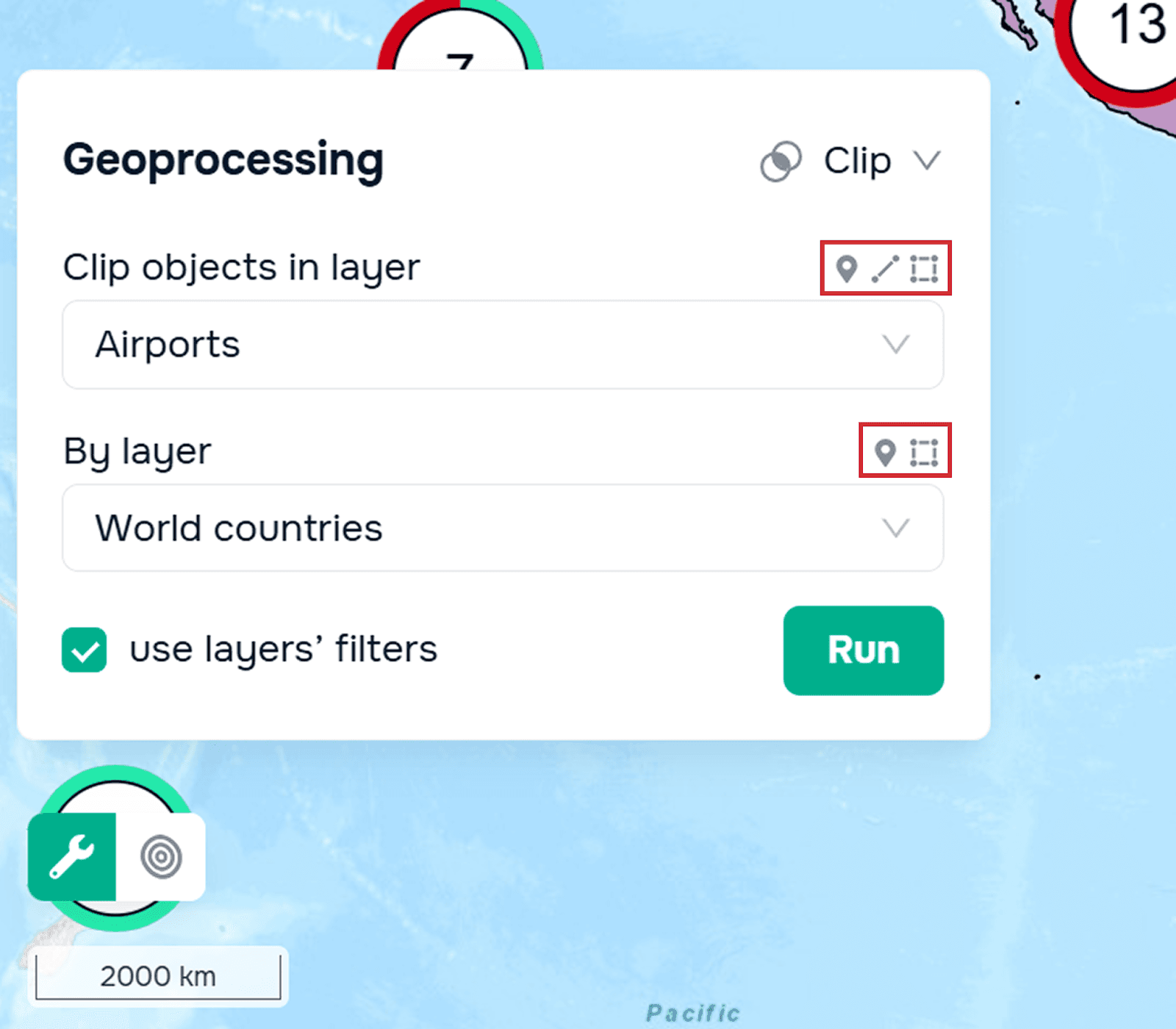
También vale la pena señalar que al seleccionar capas, en la esquina superior derecha hay una sugerencia gráfica sobre qué tipo de geometría se puede seleccionar.
El resultado del geoprocesamiento se agregará a la ventana del widget. Puede descargarlo a su base de datos.
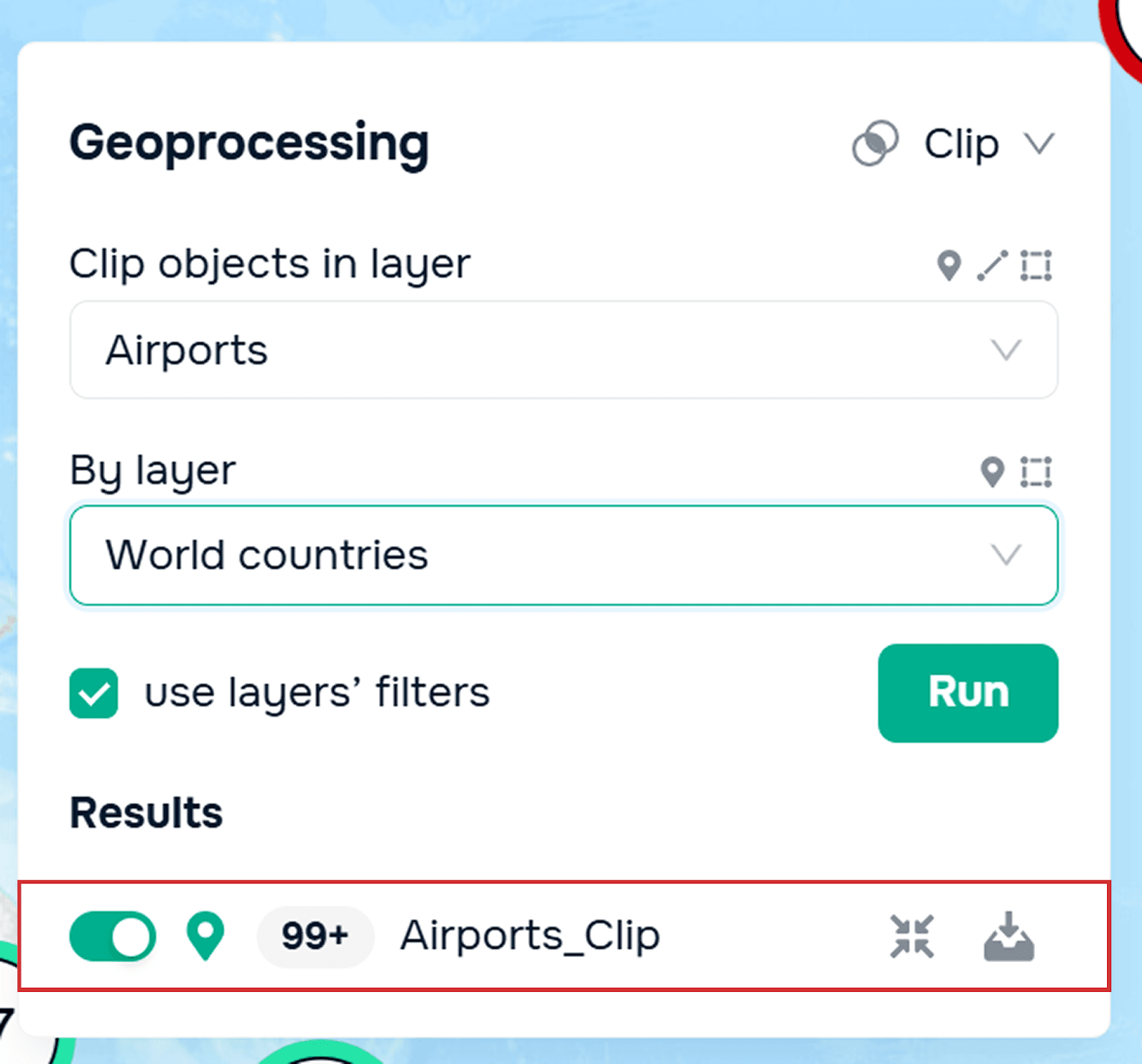
Puede encontrar más detalles sobre cómo funciona Clip en nuestro tutorial.
Restar (Subtract)
Debe seleccionar dos capas:
– la capa de la que restará
– la capa cuya intersección restará
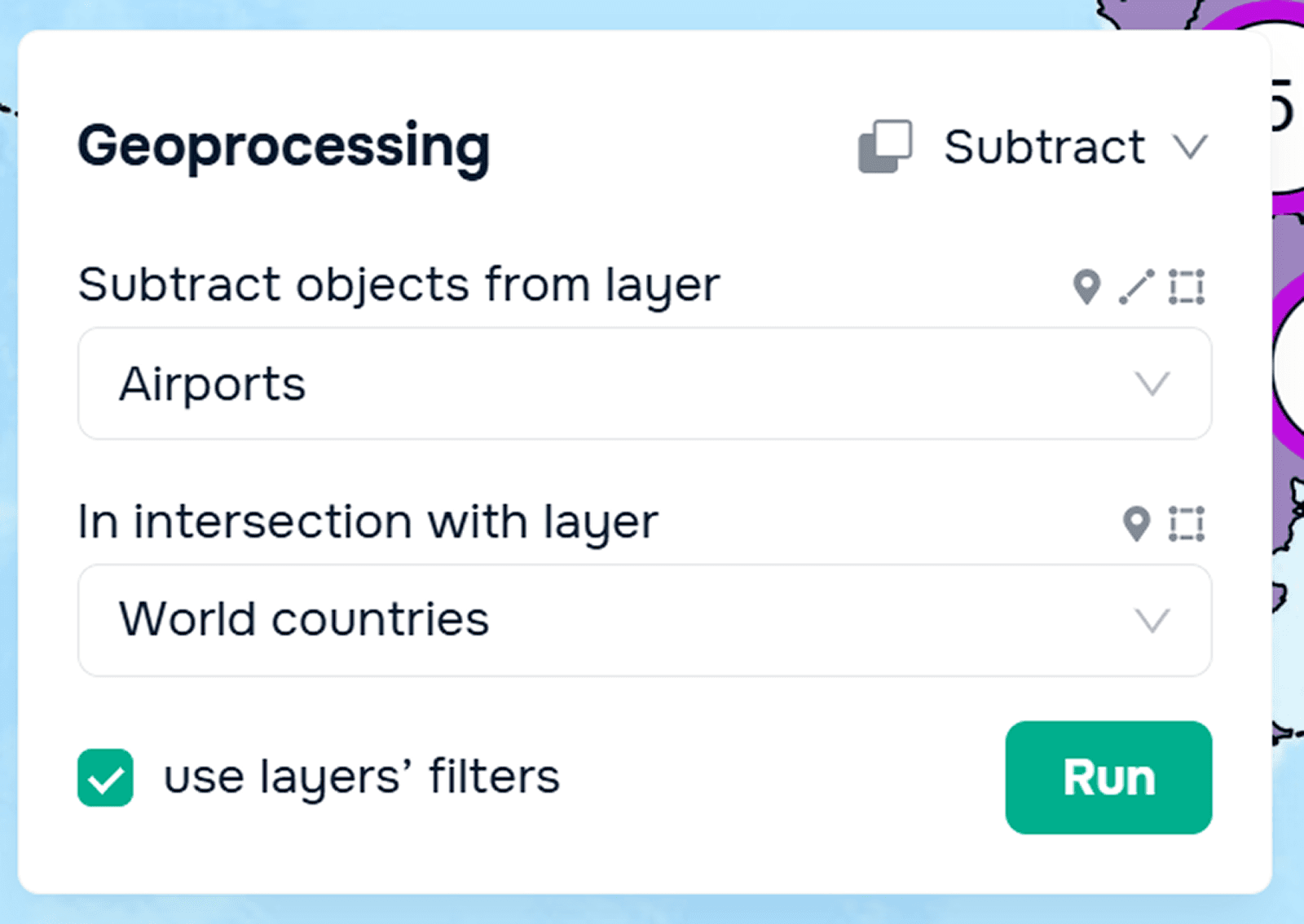
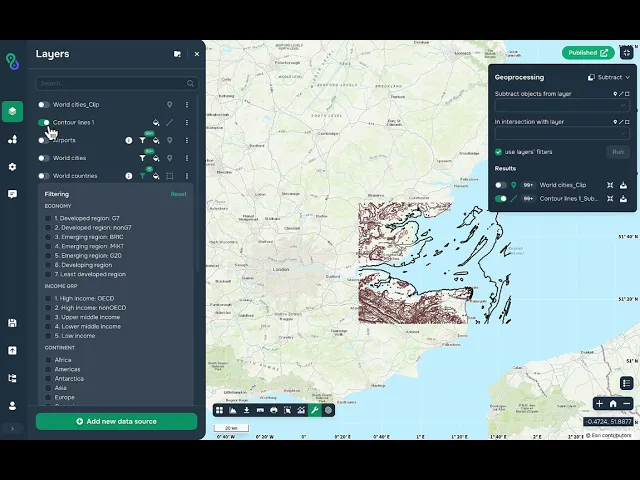
El resultado de esta herramienta será la parte de la primera capa que no se intersecta con la segunda.
Puede obtener más información sobre cómo funciona esta herramienta en nuestro tutorial.
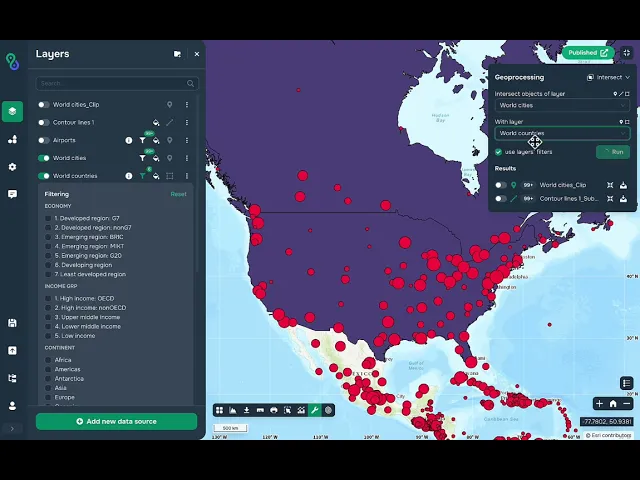
Intersección (Intersect)
Al utilizar esta herramienta, debe seleccionar las capas que desea intersectar. El resultado será una intersección de las dos capas.
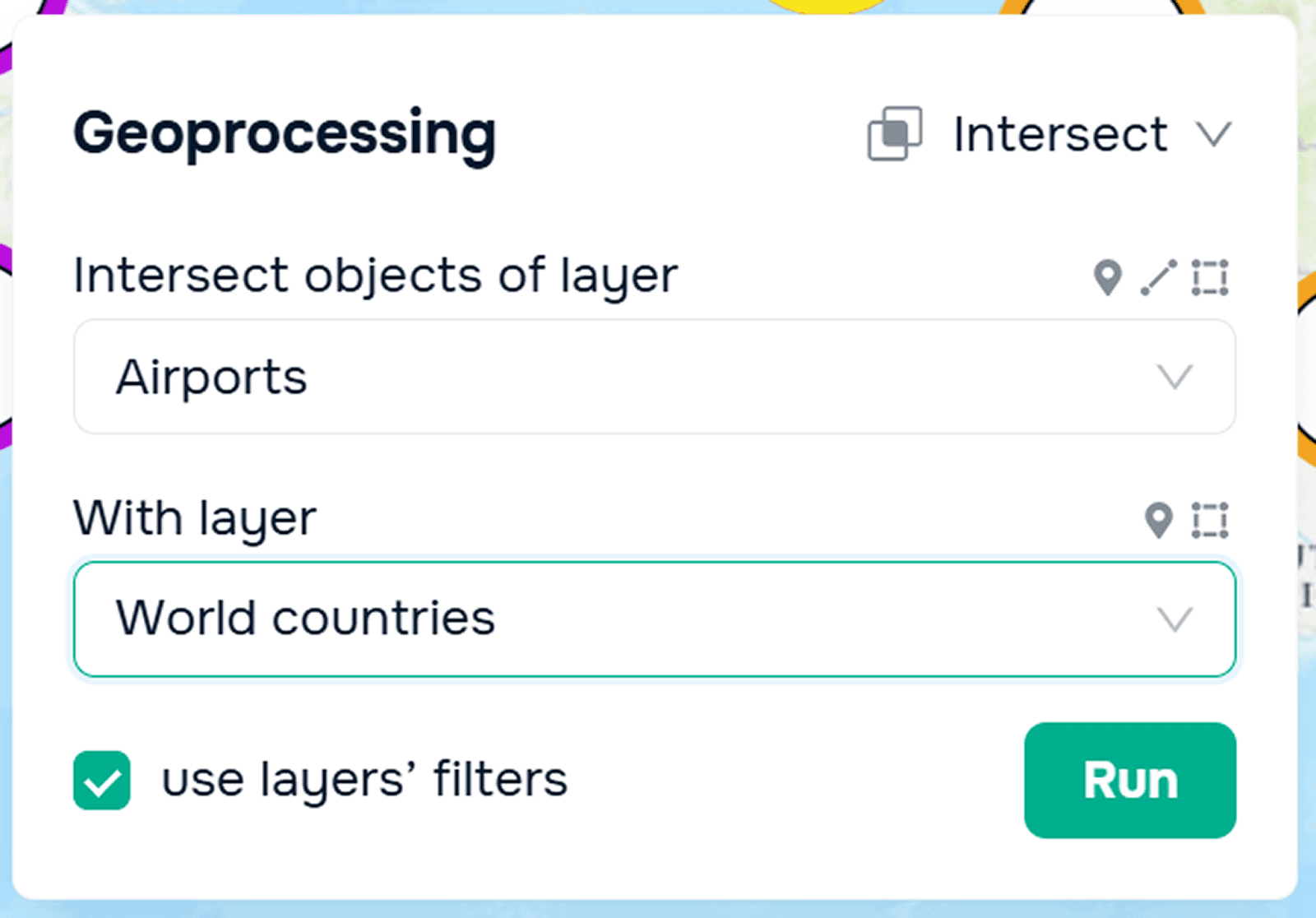
Puede obtener más información sobre cómo funciona la herramienta en nuestro tutorial.
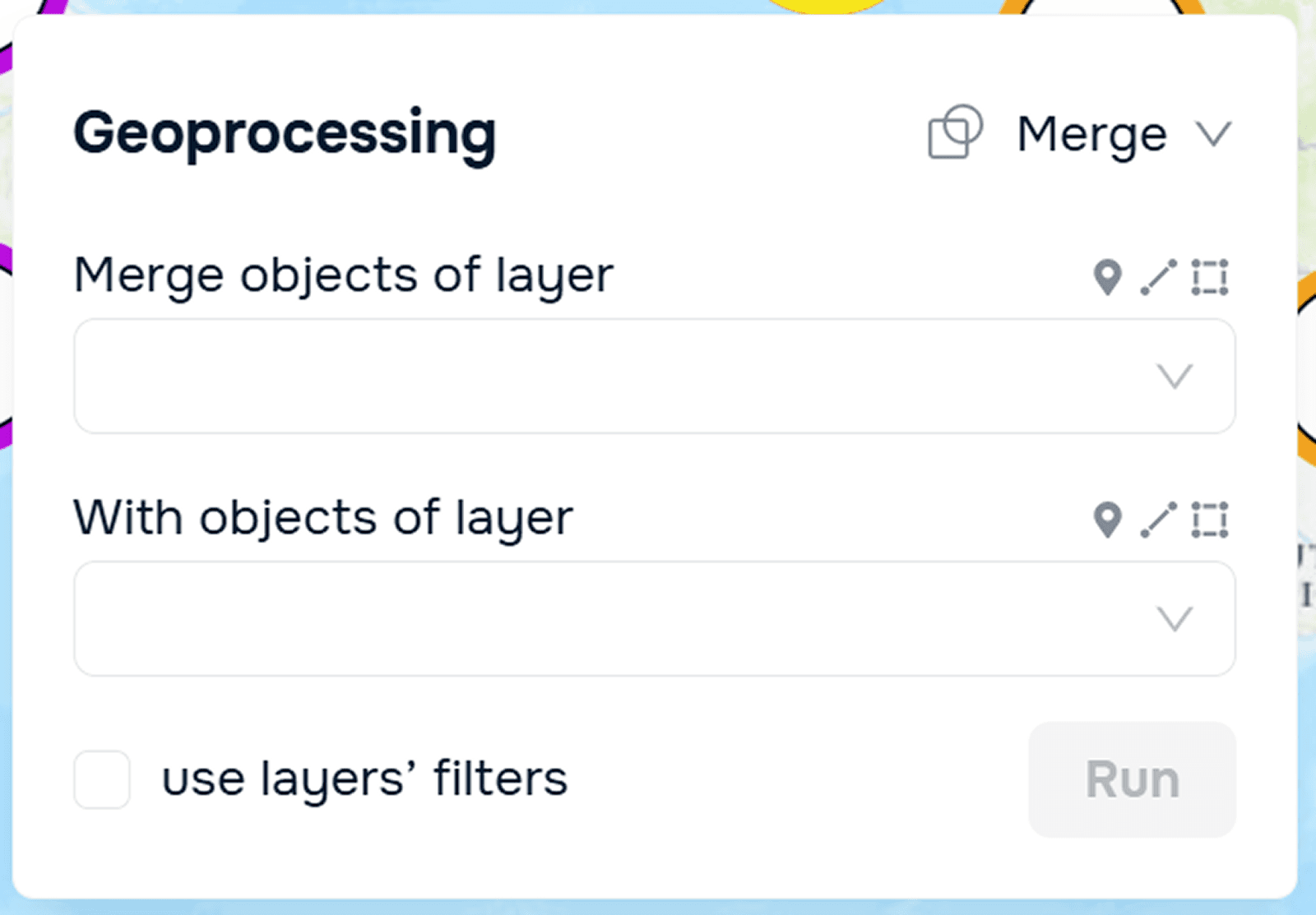
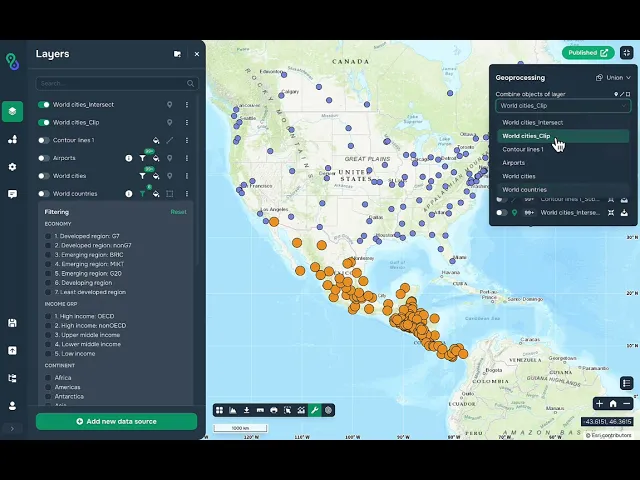
Fusionar (Merge)
Para utilizar esta herramienta, debe seleccionar dos capas de idéntica geometría. El resultado es una capa fusionada que contiene elementos tanto de la primera como de la segunda capa.
Puede obtener más información sobre cómo funciona la herramienta en nuestro tutorial.
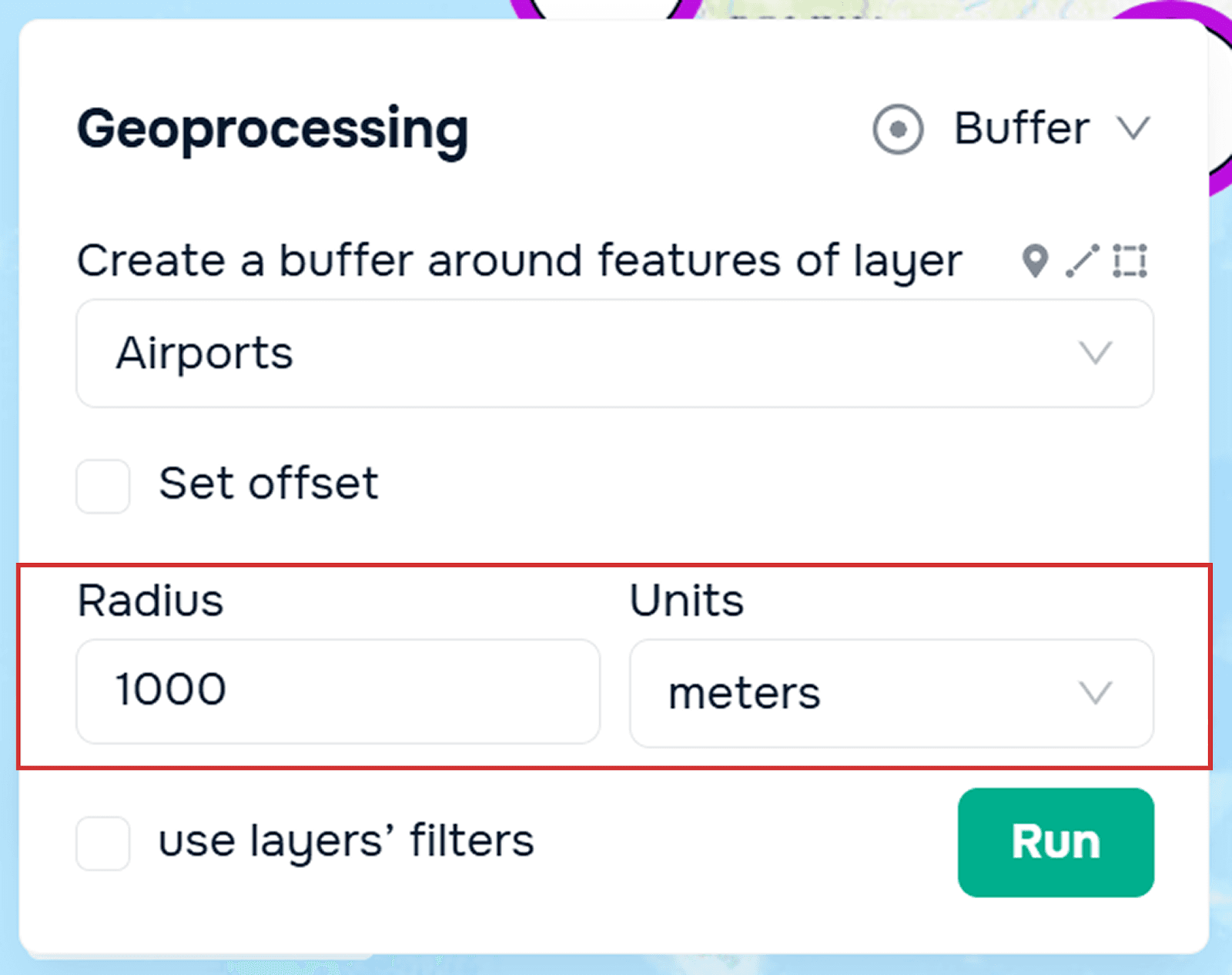
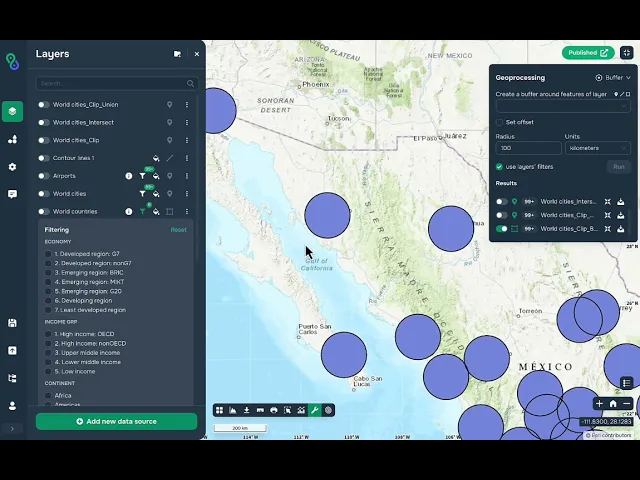
Zona de influencia (Buffer)
Esta herramienta le permite crear una zona de influencia alrededor de un objeto con un radio específico. En la ventana del widget, puede configurar el radio y las unidades de medida.
Puede obtener más información sobre cómo funciona la herramienta en nuestro tutorial.
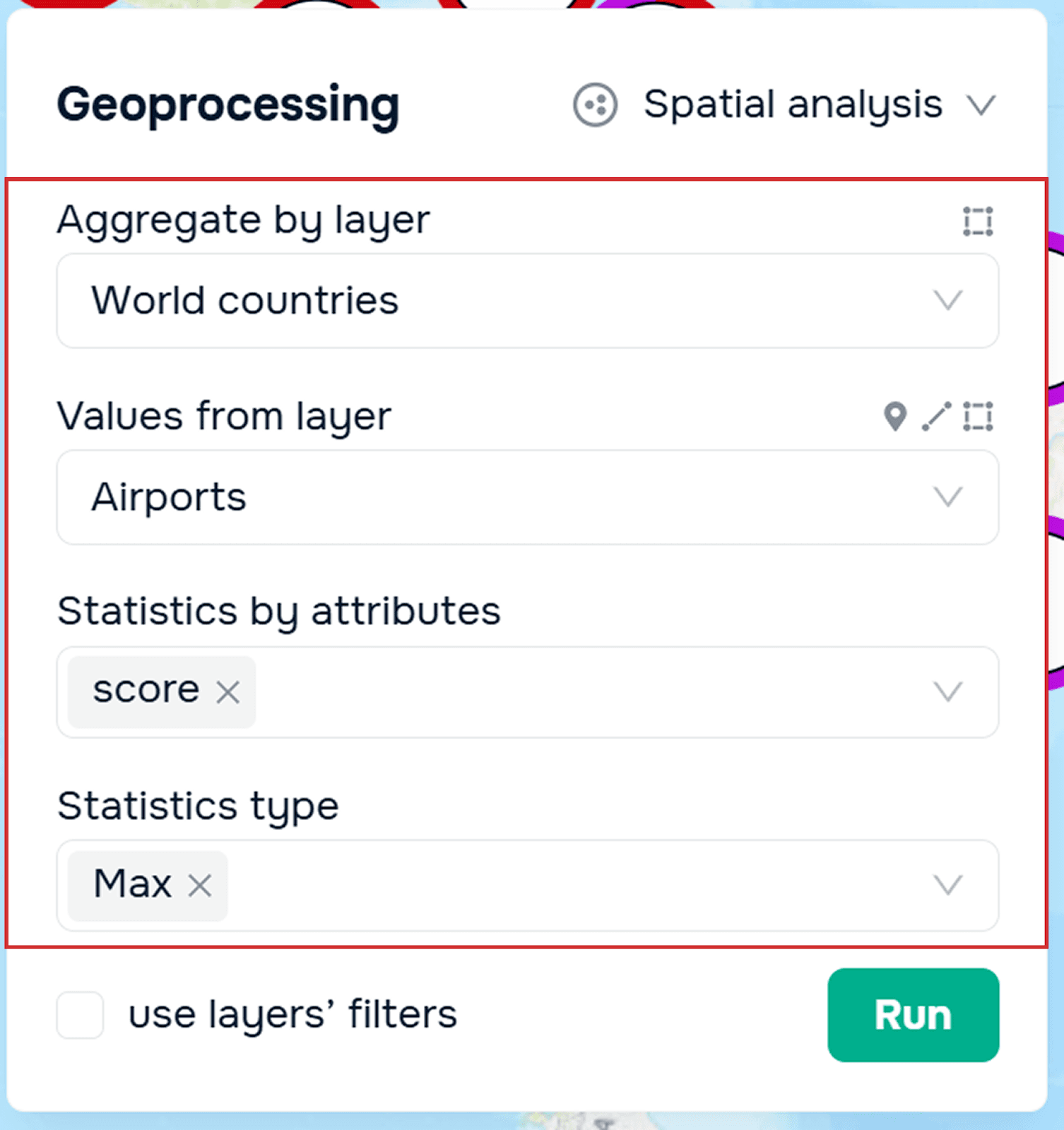
Análisis espacial
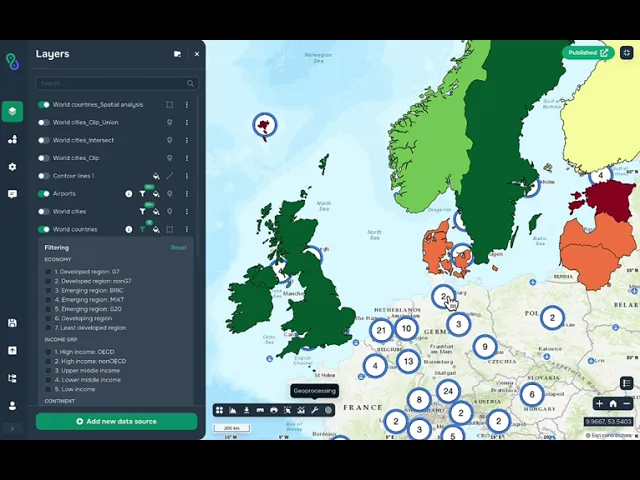
Para utilizar esta herramienta, debe seleccionar una capa de polígonos a la que se adjuntarán los valores obtenidos. A continuación, seleccione la capa para la cual se generarán las estadísticas (puede ser cualquier geometría). Luego, seleccione el atributo numérico para el cálculo. Finalmente, seleccione el tipo de cálculo: mínimo, máximo, media o suma. El resultado es una nueva capa de polígonos basada en la primera con un atributo adicional para las estadísticas.
Puede obtener más información sobre cómo funciona la herramienta en nuestro tutorial.
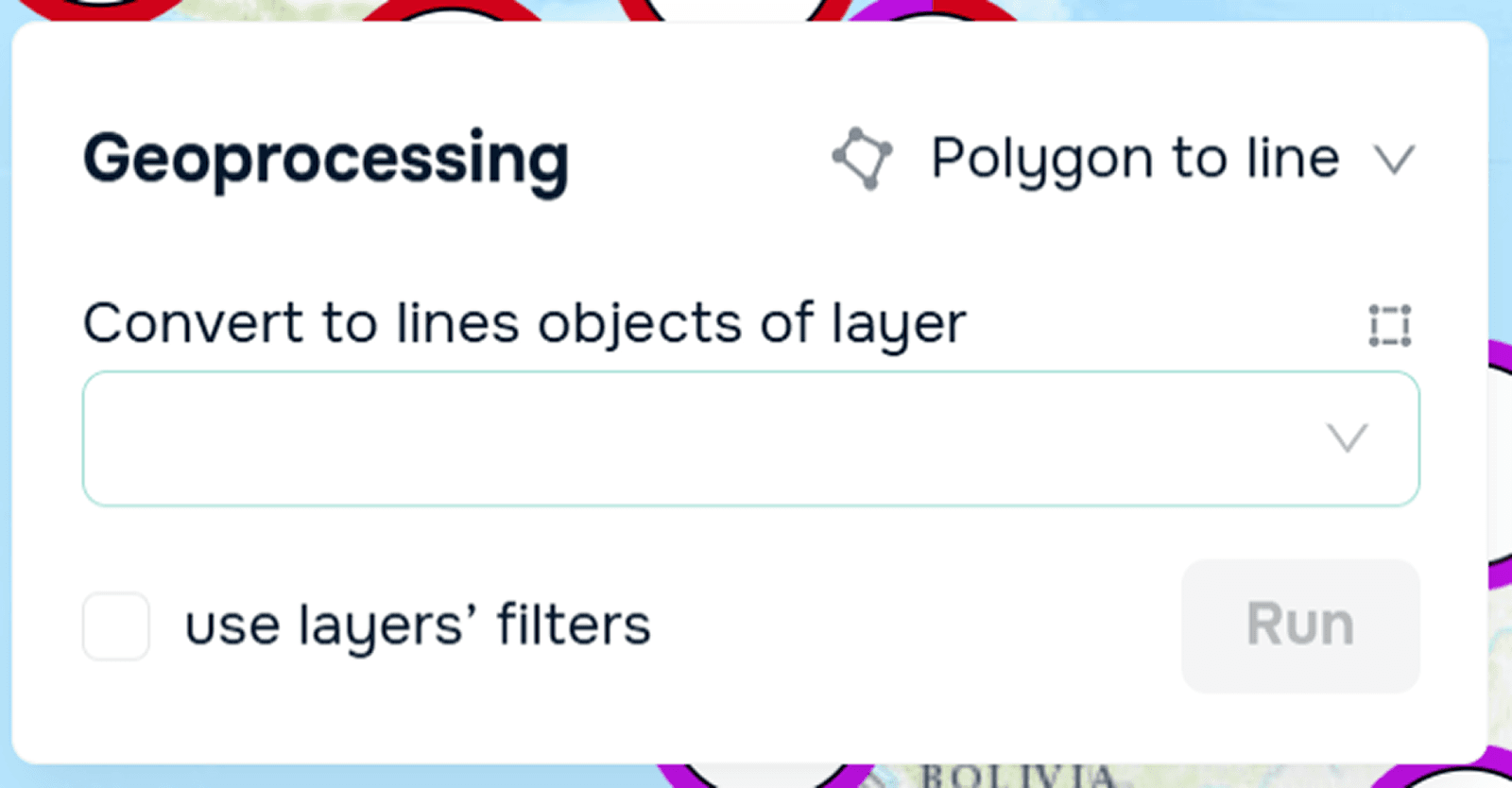
Polígono a líneas
Debe seleccionar la capa de polígonos que desea convertir en una capa de líneas.
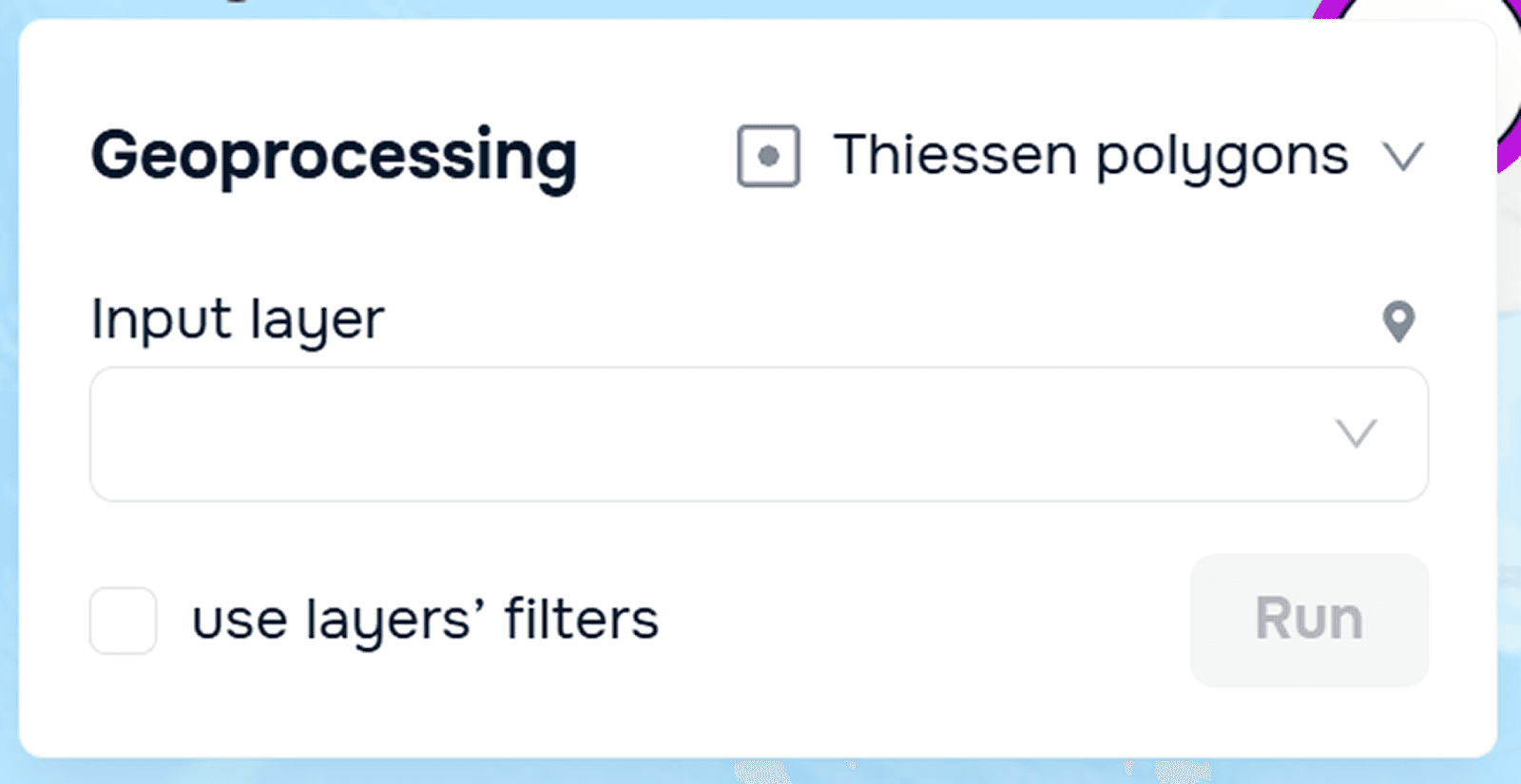
Polígonos de Thiessen
Una herramienta que crea polígonos que definen áreas de influencia alrededor de cada punto de entrada. Debe seleccionar una capa de puntos alrededor de la cual se construirán estas áreas.
Preguntas frecuentes (FAQ)
¿Qué tipos de datos admite el widget de Geoprocesamiento?
El widget admite capas de puntos, líneas y polígonos. Las herramientas disponibles dependen del tipo de geometría de las capas seleccionadas.
¿Puedo utilizar capas filtradas en operaciones de geoprocesamiento?
Sí, los filtros activados en las capas se pueden tener en cuenta al ejecutar herramientas como Recortar y Restar.
¿Dónde se guardan los resultados del geoprocesamiento?
Los resultados aparecen en la ventana del widget y se pueden descargar y guardar en su base de datos para su uso posterior.
¿Por qué algunas capas no están disponibles para su selección?
Cada herramienta tiene requisitos de geometría. El widget muestra sugerencias gráficas que indican qué tipos de geometría son compatibles.
Conclusiones clave
El geoprocesamiento es esencial para transformar, combinar y analizar datos espaciales en SIG.
Herramientas como Recortar, Intersectar y Restar ayudan a identificar superposiciones, exclusiones y áreas de interés.
Las herramientas analíticas como Zona de influencia, Análisis espacial y Polígonos de Thiessen revelan relaciones espaciales y zonas de influencia.
El widget de Geoprocesamiento en GISCARTA proporciona un flujo de trabajo intuitivo paso a paso con resultados descargables.