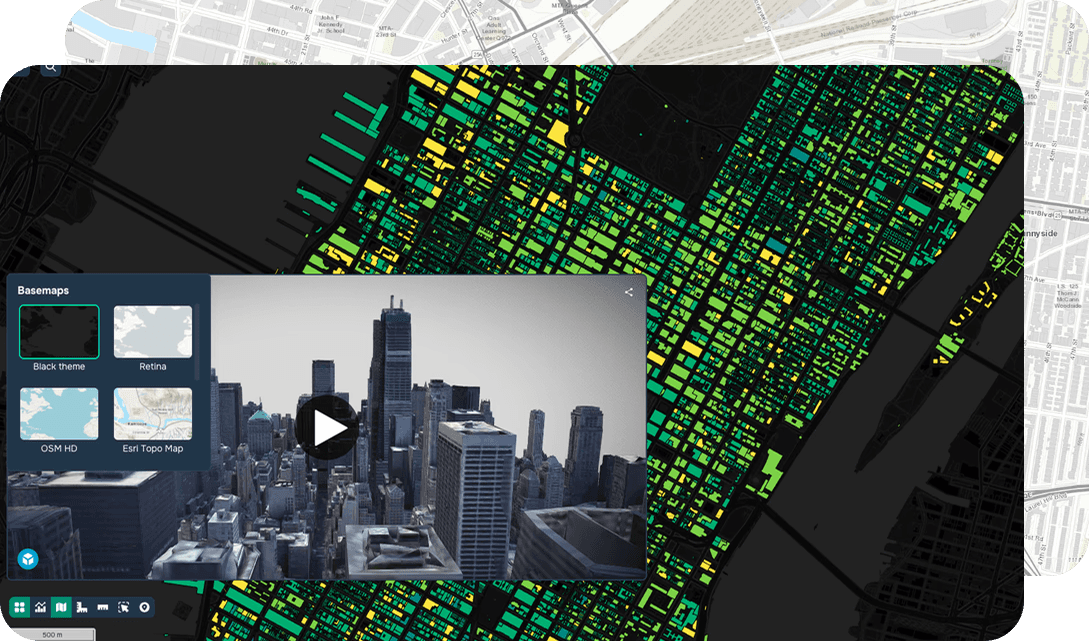
La visualización tridimensional en GIS es una herramienta importante para el análisis de datos espaciales. A diferencia de las representaciones cartográficas bidimensionales tradicionales, el modo 3D permite tener en cuenta la elevación de los objetos, el terreno y su posición espacial. Esto es especialmente importante al trabajar con estructuras geológicas, estructuras de ingeniería, proyectos de desarrollo urbano y activos de infraestructura.
La plataforma GISCARTA admite la visualización 3D de capas vectoriales y proporciona herramientas para ajustar la elevación, el desplazamiento y la visualización espacial de los objetos, ampliando las capacidades de análisis y modelado.
Capacidades 3D en la plataforma GISCARTA
– Adición de coordenadas Z: elevaciones para entidades poligonales
– Adición de modelos 3D de entidades puntuales
¿Cómo configurar una capa en 3D?
Capa poligonal
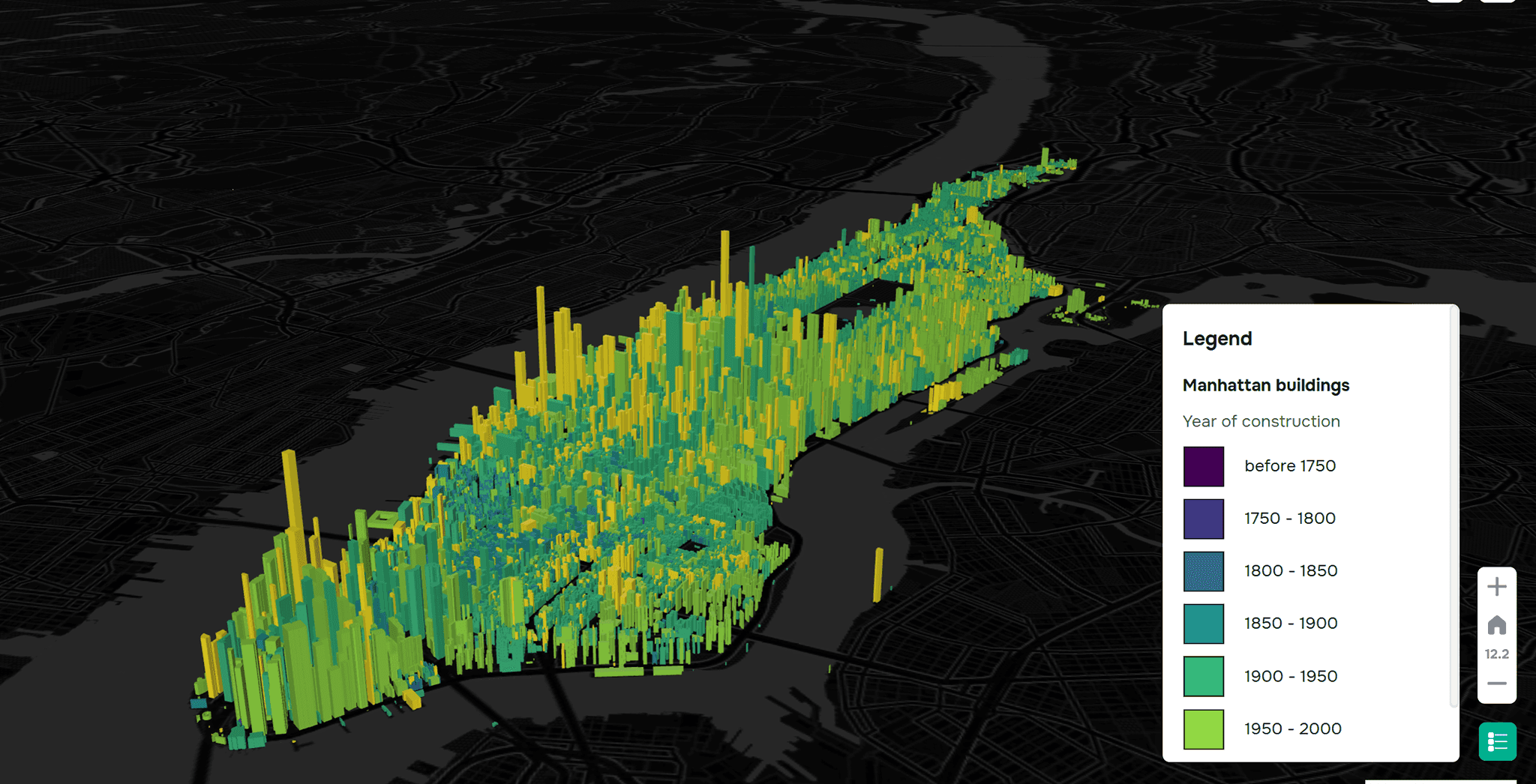
Paso 1. En la configuración de la capa, vaya a la sección 3D. Allí, seleccione el campo numérico que se utilizará para ajustar la altura de las entidades poligonales. Puede ser un valor absoluto o un valor numérico de un atributo.
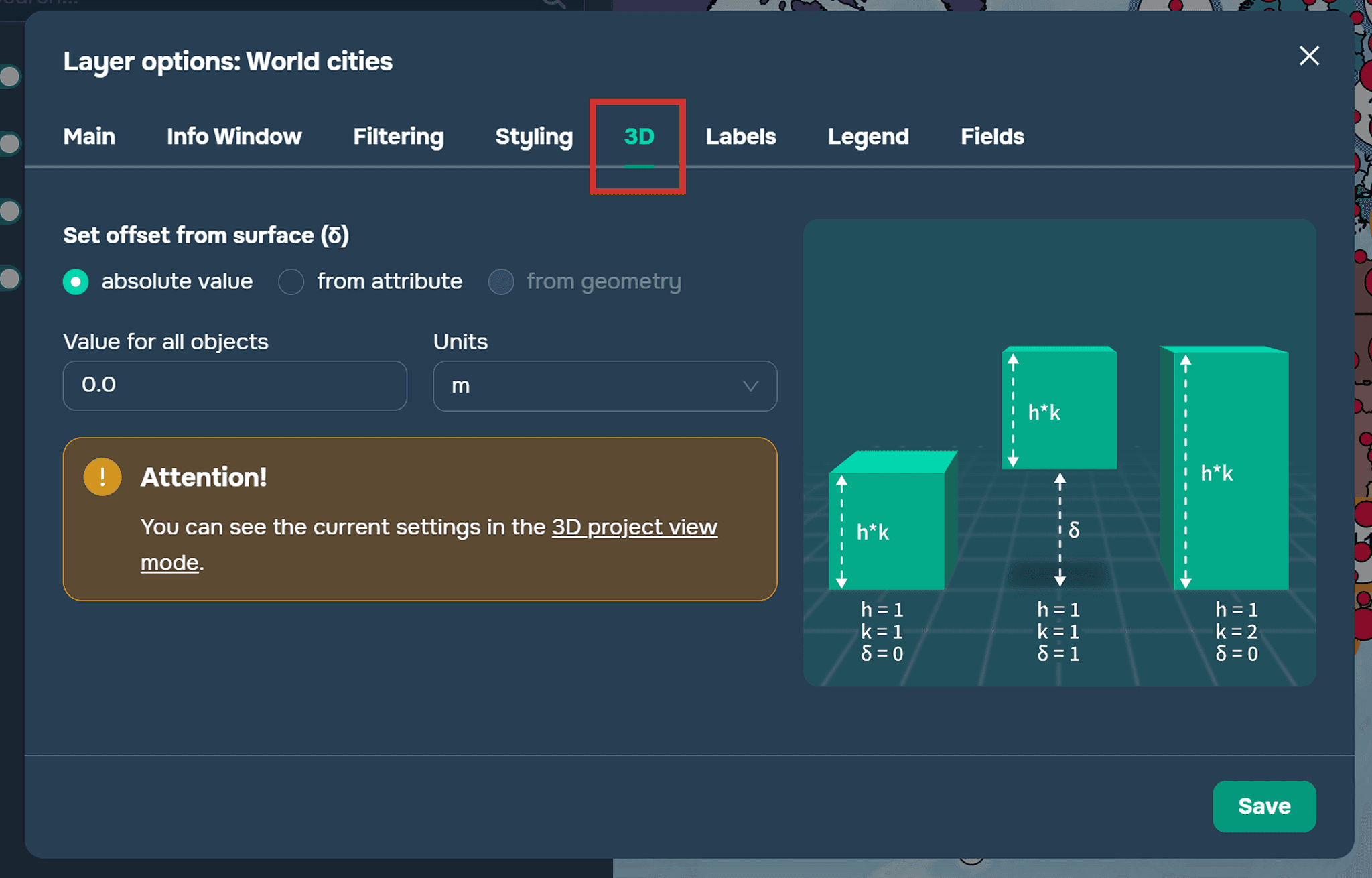
Paso 2. Debe establecer los siguientes parámetros:
Multiplicador vertical. Esto se refiere a la altura del objeto y es un coeficiente por el cual se multiplicará el valor del campo utilizado para establecer la altura de cada objeto.
Desplazamiento relativo al suelo. Esto determina la posición del objeto en relación con la superficie del suelo. Puede especificarse como un número absoluto para todos los objetos, lo que significa que la capa tendrá el mismo desplazamiento, o puede especificarse desde un campo numérico, lo que significa que cada objeto tendrá su propio desplazamiento según el valor del atributo. También puede usar la coordenada Z de la capa a partir de la geometría del objeto. En este caso, cada punto tendrá una tercera coordenada y se posicionará en el espacio según su propia geometría.
Las siguientes unidades de medida para altura y desplazamiento están disponibles en la plataforma:
metros
pies
kilómetros
millas
pulgadas
Capas de puntos
Paso 1. Vaya a la sección de Estilización de capas.
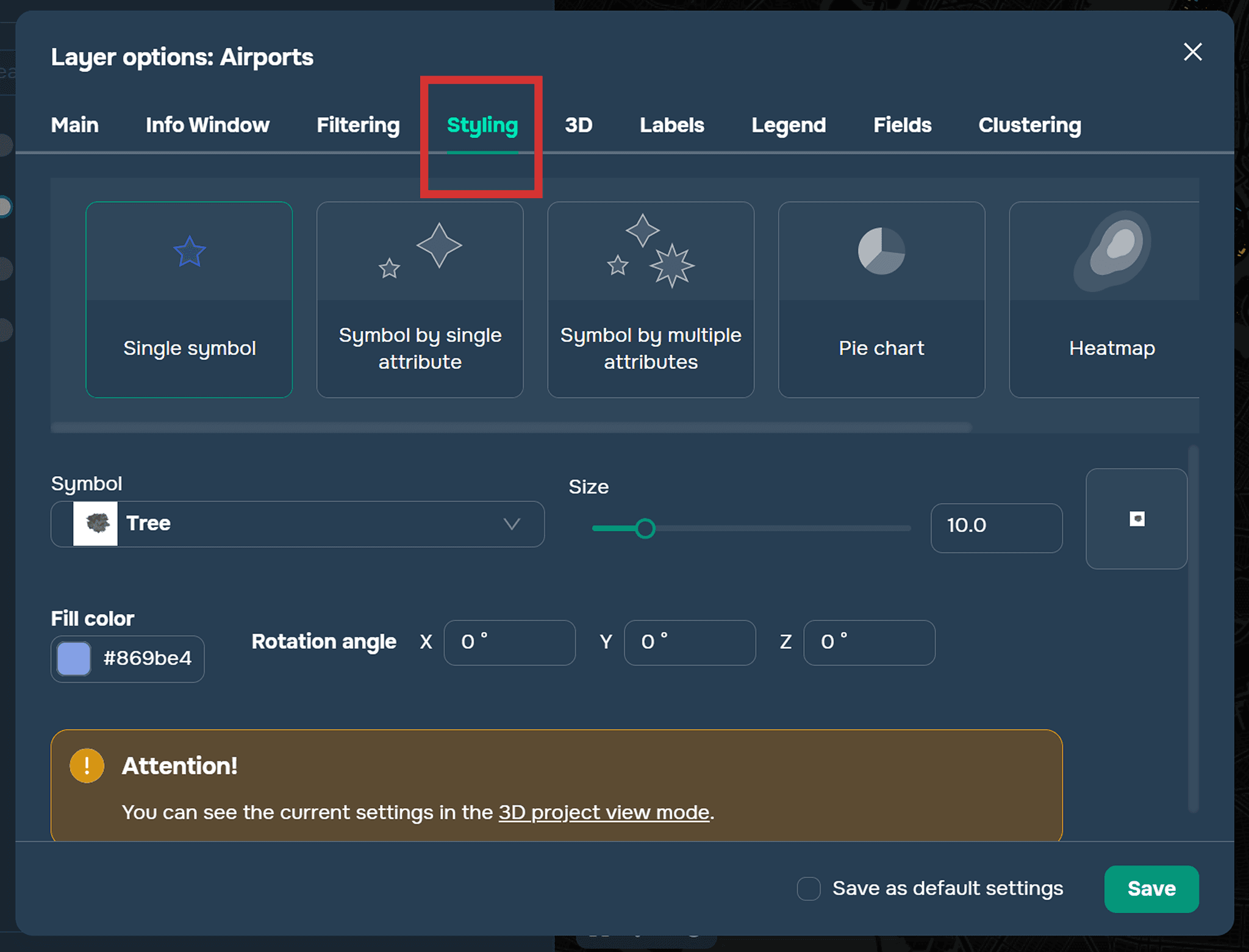
Paso 2. En la pestaña de selección de símbolos, seleccione la sección 3D y el modelo 3D deseado del objeto.
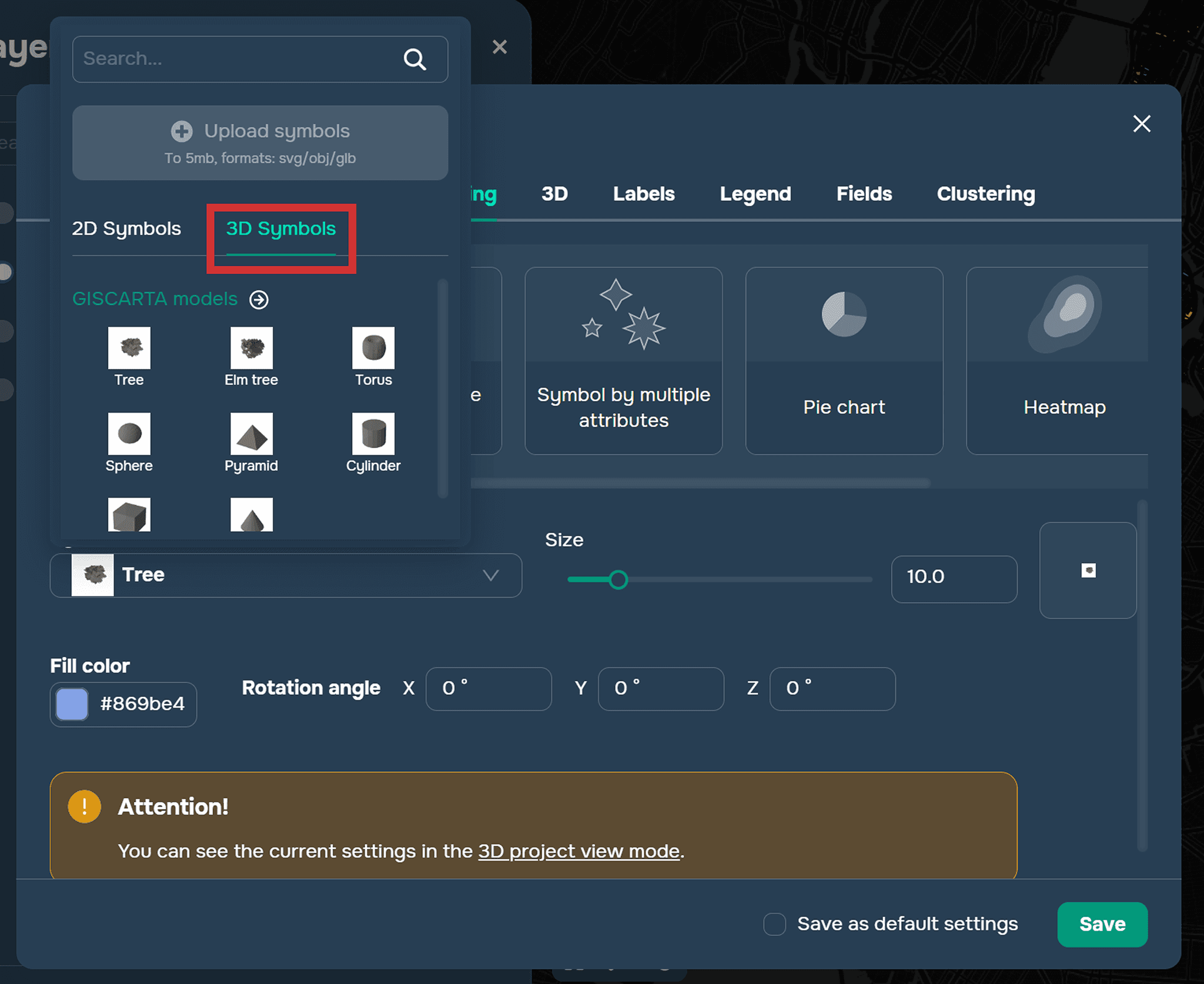
Puede agregar modelos 3D en formato glb y obj a la plataforma. Más detalles sobre cómo agregar modelos 3D se pueden encontrar en la sección docs.
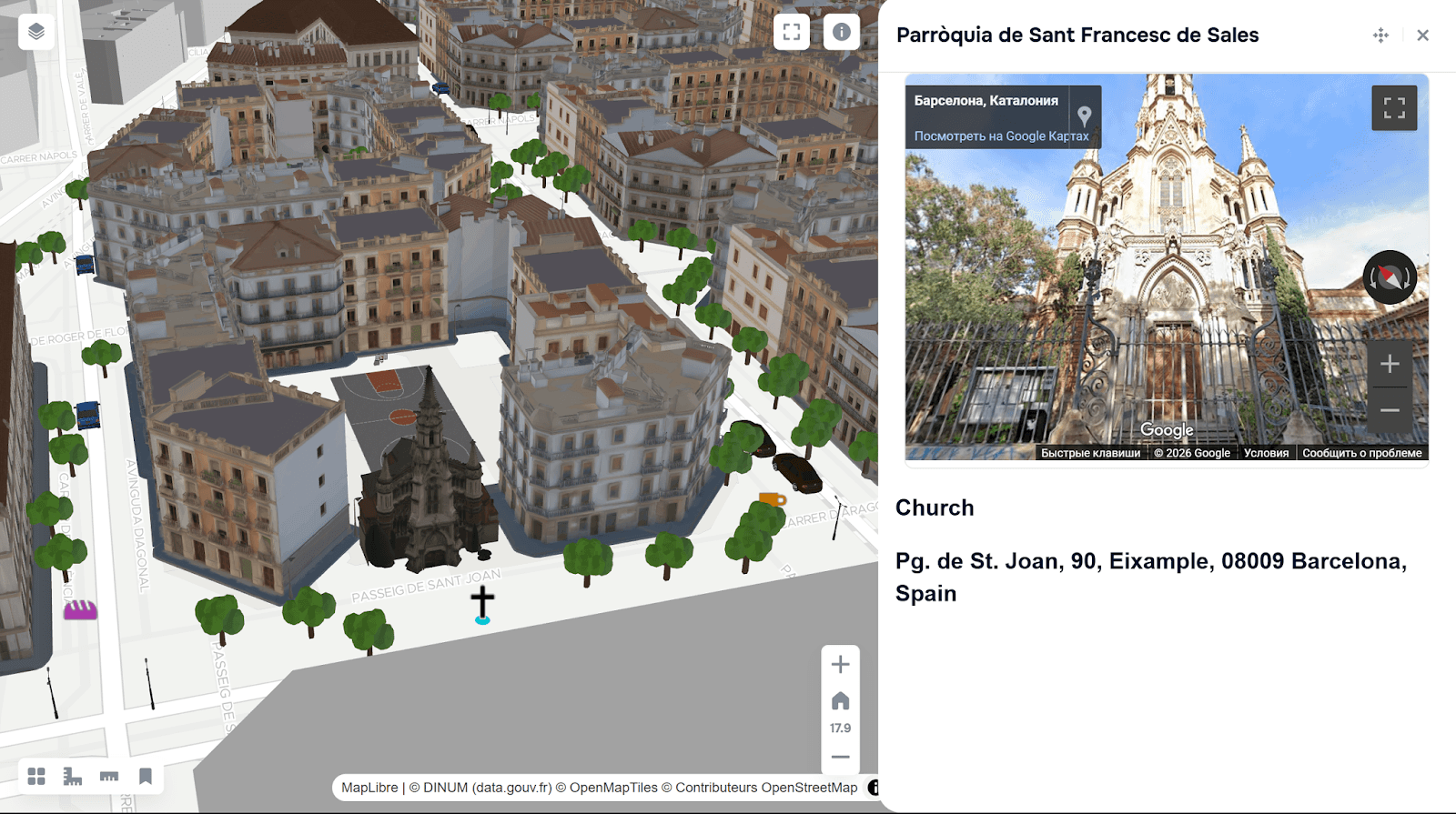
Un ejemplo de uso de modelos 3D en GISCARTA
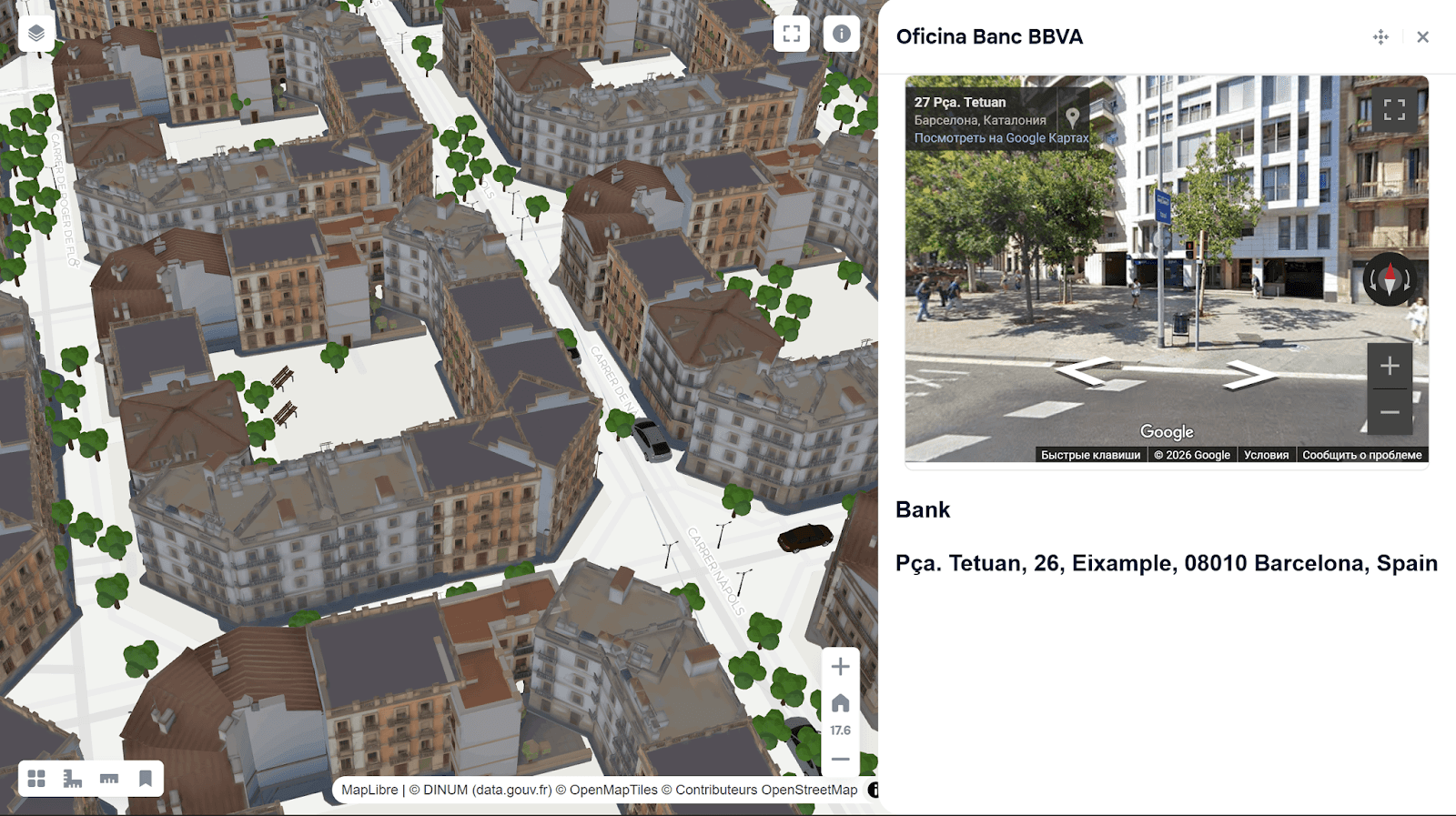
Un ejemplo de uso de modelos 3D en GISCARTA
Se puede encontrar información más detallada sobre la función 3D en la plataforma GISCARTA en la sección docs.
Preguntas frecuentes
¿Cómo habilito 3D para una capa poligonal en GISCARTA?
Vaya a la configuración de la capa, abra la sección 3D y seleccione un campo numérico para definir la altura de las entidades poligonales.
¿Puedo controlar qué tan alto o bajo aparecen los objetos sobre el suelo?
Sí, puede usar la configuración de Multiplicador vertical y Desplazamiento relativo al suelo, incluidos valores de atributos o coordenadas Z.
¿Cómo se agregan modelos 3D a las capas de puntos?
En la sección de Estilización de capas, elija un símbolo de la pestaña 3D y seleccione el modelo 3D deseado (por ejemplo, formato OBJ o GLB).
Puntos clave
GISCARTA permite la visualización 3D de capas vectoriales mediante el ajuste de altura, desplazamiento y escala vertical. Las capas poligonales pueden extruirse utilizando valores de atributos o coordenadas Z. Las capas de puntos admiten modelos 3D personalizados para una representación espacial realista.